Where Do Zoom Recordings Go? How to Find Local and Cloud Recordings
 Meetlens Editorial8 min read
Last reviewed: October 10, 2026. Zoom menu names and limits checked against the Zoom help pages linked in this article.
On this page
Zoom recordings go to a Zoom folder in your Documents folder or, for cloud recordings, to the Zoom web portal. Zoom's built-in recorder is one of the options in our guide on how to record a meeting without a bot, and the Record button you pressed decides where the file went. Below: both locations, processing time, non-host access and missing files.
Where do Zoom recordings go?
Zoom saves computer recordings to a Zoom folder in the Documents folder of your home directory (C:\Users\[Username]\Documents\Zoom on Windows, /Users/[Username]/Documents/Zoom on Mac, /home/[Username]/Documents/Zoom on Linux) and saves cloud recordings to the Zoom web portal under Recordings & Transcripts.
These default location paths come from Zoom's guide to finding computer and cloud recordings. Record on this Computer makes a computer recording, Zoom's name for local recordings. Record to the cloud stores a cloud recording on Zoom's cloud computing servers, in the host's account.
| Recording type | Who can make it | Where it goes | Where to open it |
|---|---|---|---|
| Computer recording | Any account, including free Basic, in the Zoom desktop app for Windows, macOS or Linux; the host or a participant the host allows | A new meeting folder in the default location, on the computer that recorded | File Explorer, Finder or the desktop app |
| Cloud recording | A paid account on Pro, Business, Education or Enterprise; the host or a co-host | The host's account in the Zoom web portal | Recordings & Transcripts > Cloud recordings in the web portal or in the desktop app's Hub |
Sources: Zoom's pages on computer recording, cloud recording and recording plans.
The Zoom Web App (Zoom in a web browser) and the Zoom mobile app can't record to a computer, so a recording made there is always a cloud recording (Zoom features by platform).
How to find Zoom recordings on your computer
To find a Zoom recording on your computer, open the Zoom folder in your Documents folder or click Open recordings in the Zoom desktop app. Zoom creates a separate folder for each recorded meeting, with the files video[number].mp4 (MP4, video and audio) and audio[number].m4a (M4A, audio only), per the computer recording guide above.
On Windows
- Open File Explorer, open the Documents folder, then the Zoom folder. Or paste the Windows path from above, with your user name, into the address bar.
- Open the meeting's folder. Sort by Date modified to put the latest meeting on top.
Windows 11 File Explorer: Documents › Zoom › the meeting’s folder
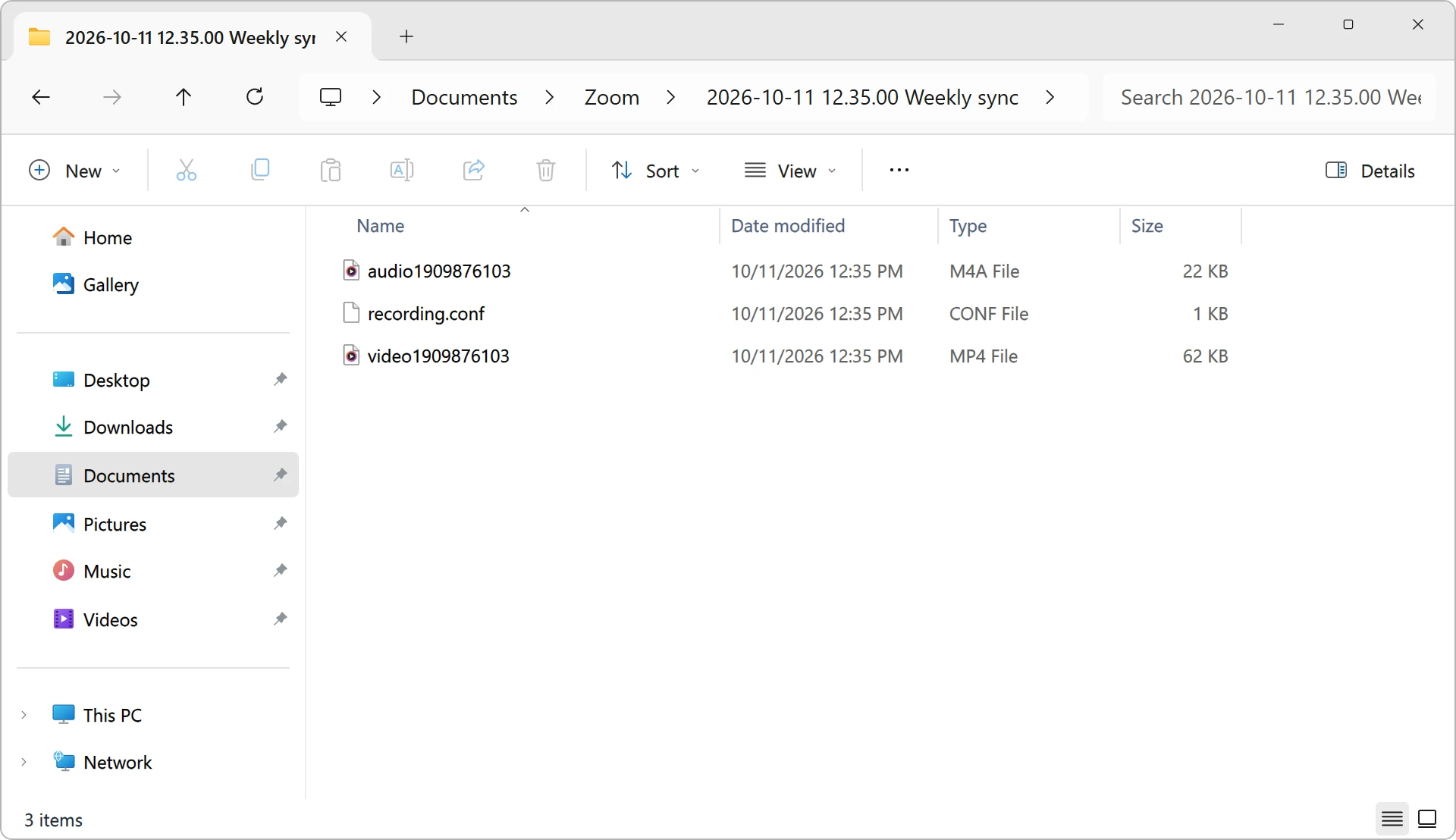
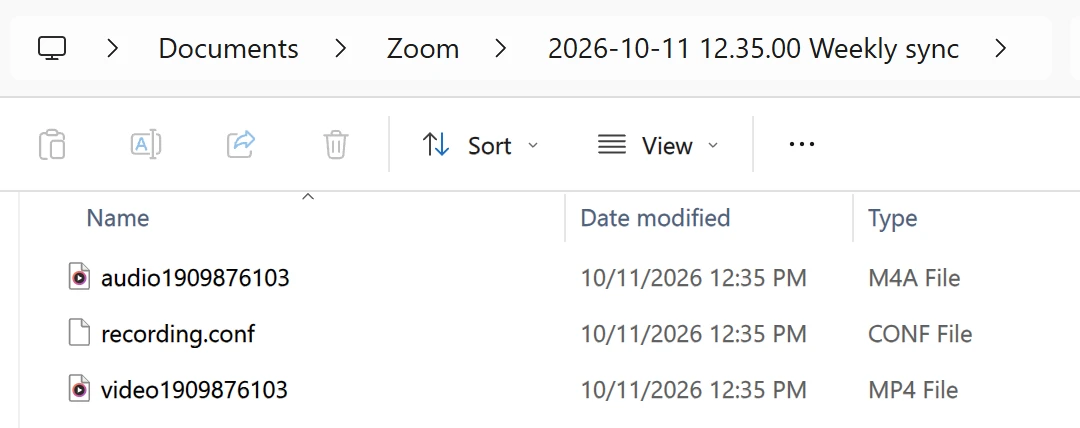
Recreated from Windows 11 for this guide; file names from a real Zoom recording.
On a Mac
- In Finder, press Shift-Command-O to open the Documents folder (Apple: Mac keyboard shortcuts), then open Zoom and the meeting's folder.
- To jump straight there on macOS, press Shift-Command-G and paste the Mac path from above with your user name.
In the Zoom desktop app
- Click the Home tab, then Open recordings below your list of meetings. The desktop app switches to the Hub tab (Zoom Hub); if Hub isn't in the left sidebar, it's under More (Zoom: getting started with Zoom Hub).
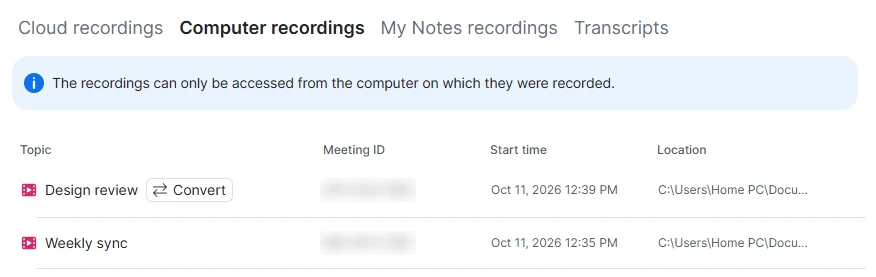
- Click Recordings & Transcripts, then the Computer recordings tab. Above the list, Zoom notes that the recordings "can only be accessed from the computer on which they were recorded." The Cloud recordings tab next to it lists your cloud recordings.
- Click a meeting topic to play it, or open the ellipsis menu and choose View file location. A recording that didn't finish converting shows a Convert button: click it to convert.
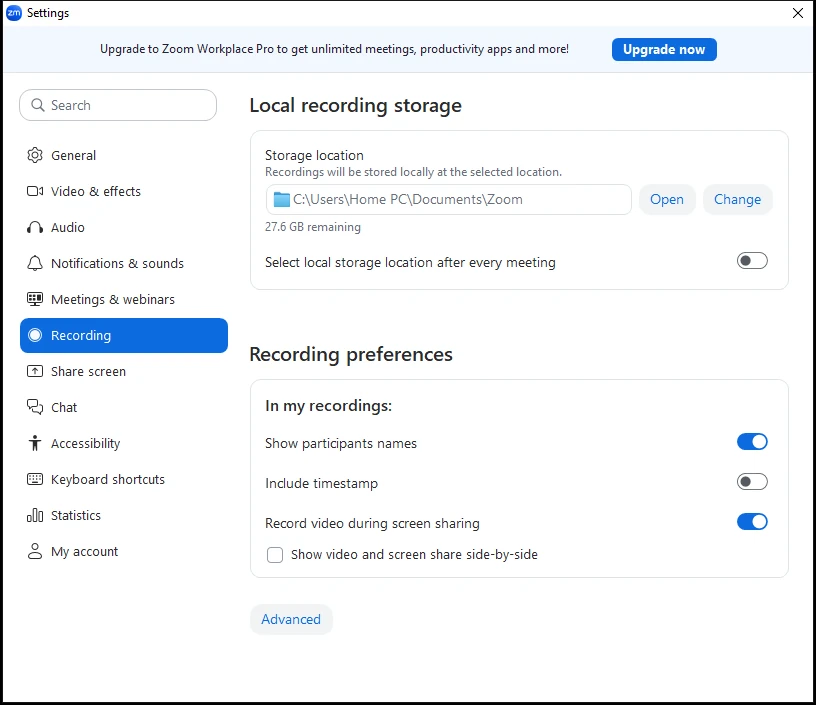
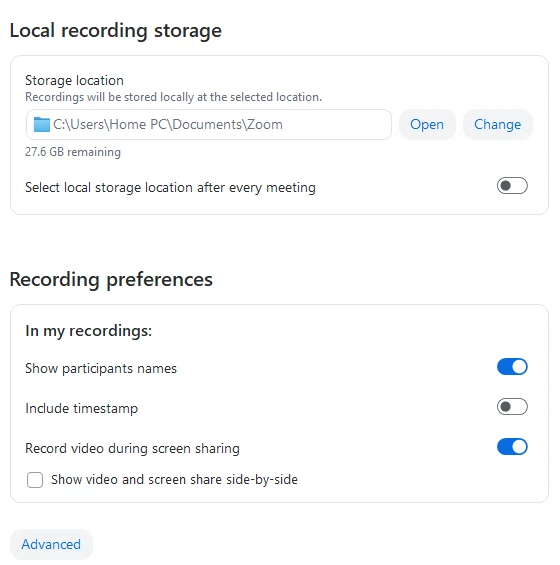
To see or change where new recordings are saved, click your profile picture, then Settings, then the Recording tab. Under Local recording storage, the path next to Storage location is the folder: Open shows it, Change picks another (Zoom: managing computer recordings).
Zoom desktop app: Settings, Recording tab
Zoom desktop app: Hub › Recordings & Transcripts › Computer recordings
If your desktop app looks different: these steps match Zoom Workplace 7.2 (October 2026). Earlier versions list recordings under Hub > My files > Meeting recordings, and versions before Hub under Meetings > Recorded (Zoom: troubleshooting computer recording issues).
Confirm the exact path in the web portal
If the folder isn't there, sign in to the Zoom web portal, open Recordings & Transcripts > Computer recordings (under My account in the new web layout described below) and read the Location column: it shows the computer name and file path. Two limits apply: Zoom opens and plays a computer recording only on the device that recorded it, and a network drive, external drive or cloud-syncing folder as the storage location can break saving and converting (per the computer recording guide above).
How to find Zoom cloud recordings
Zoom cloud recordings are in the Zoom web portal: sign in, open Recordings & Transcripts and choose the Cloud recordings tab.
- Sign in to the Zoom web portal at zoom.us.
- Click Recordings & Transcripts in the navigation menu.
- Open the Cloud recordings tab. It lists cloud recordings you started that have finished processing.
- Set the date range, then search by meeting ID, topic or keyword.
In the Zoom desktop app, the same cloud recordings are in the Hub tab under Recordings & Transcripts > Cloud recordings (Zoom: finding assets in Zoom Hub). An account admin sees every cloud recording on the account under Account Management > Recording and Transcript Management. Recordings count against cloud storage: on October 10, 2026, Zoom's pricing page listed 10 GB per user on Pro.
If your web portal looks different: Zoom is moving accounts to a new web layout. Accounts bought through Zoom's sales team switched to it for good on September 30, 2026, accounts bought through partners switch on October 31, 2026, and accounts bought online start getting it gradually from November 3, 2026 (a tentative date). In the new layout, a product menu in the top-right corner replaces the left navigation menu, Recordings and Transcripts is under My account, and an admin finds every recording under Admin Center > Content Management > Recordings and Transcripts (Zoom: the new Zoom Web experience).
Zoom web portal: Recordings and Transcripts, Cloud recordings
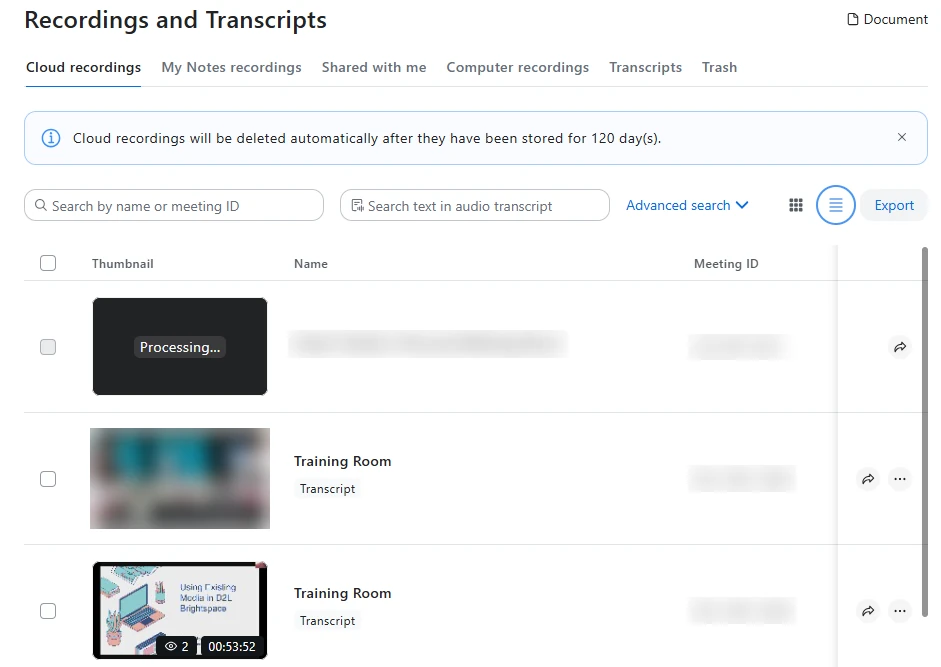
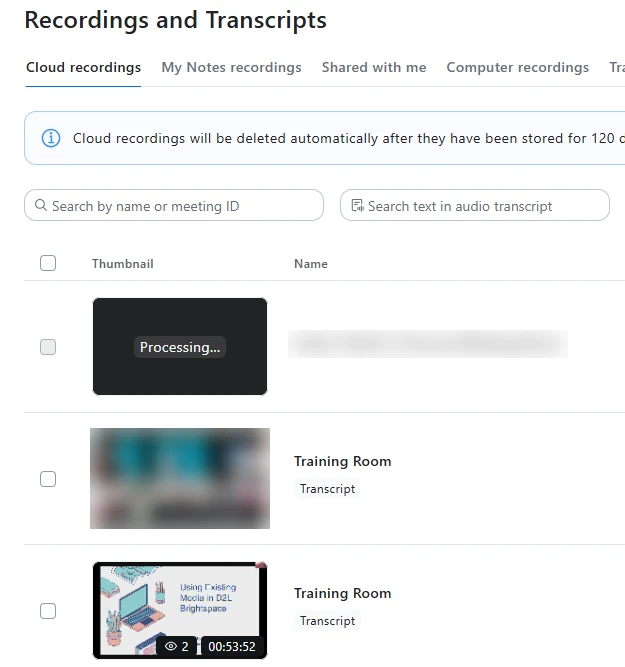
Image: Portland Community College. Names, meeting IDs and faces blurred.
On iPhone or Android
The Zoom mobile app for iOS, iPad and Android can't record to the phone, so every recording started from a phone is a cloud recording. Only a host or co-host on a paid plan can start one. After processing, Zoom lists it in the web portal (per the cloud recording guide above): open zoom.us in your phone's browser, sign in and go to Recordings & Transcripts.
How long do Zoom recordings take to process?
Zoom cloud recordings usually take about twice the recorded time to process and occasionally up to 24 hours when Zoom's servers are busy (per the cloud recording guide above). Processing time follows recorded minutes, not meeting length: 45 minutes recorded in a two-hour meeting usually take up to about 90 minutes. You don't need to stay in the meeting meanwhile, and if email notification is on, Zoom emails the host when processing is complete.
Computer recordings convert right after the meeting ends, and Zoom opens the folder when it's done. Until then, don't restart or shut down the computer, let it sleep or close the laptop: an interrupted conversion can leave the files corrupted and unrecoverable.
If a cloud recording seems stuck:
- Check that the meeting really ended. For a scheduled meeting, go to Meetings > Previous in the web portal and click End if it still shows as active. For an instant meeting, open the Zoom app where you hosted it, click Back to meeting, then End. Then refresh the page (Zoom: recordings still processing).
- Contact Zoom Support if processing has passed 48 hours (Zoom: missing recordings).
Can you access a Zoom recording if you weren't the host?
Only the host can see a Zoom cloud recording by default, so participants get it only when the host shares a link (per Zoom's missing-recordings guide above). The host also decides whether that share link allows downloads (Zoom recording FAQ).
That holds even for a co-host who pressed Record: the cloud recording appears only in the host's list. A computer recording made by another participant exists only on that person's computer, so ask them for the file.
You can rewatch a Zoom meeting only if someone recorded it. Next time, make your own copy instead of counting on the host.
Why can't I find my Zoom recording?
A Zoom recording usually goes "missing" for one of six reasons: it went to the other location, it is still processing, conversion failed, it was deleted, it never started, or you are checking the wrong account. Work through this troubleshooting checklist, based on Zoom's missing-recordings guide above, in order:
- Other location. Check both tabs, Cloud recordings and Computer recordings, in Recordings & Transcripts or in the desktop app's Hub, plus the Zoom folder on the computer that recorded.
- Still processing. A cloud recording appears only after processing; see the timing above.
- Conversion failed. If the meeting folder holds files like
double_click_to_convert_01.zoom, double-click them to convert. - Deleted. Recover a cloud recording from the Trash tab in Recordings & Transcripts within 30 days of deletion; after that it's gone for good (Zoom: recovering cloud recordings). If there's no Trash tab, your Zoom admin has turned it off. Deleted computer recordings are in your computer's Recycle Bin or Trash.
- Never started, paused or blocked. If nobody pressed Record and automatic recording was off, there's nothing to recover. If the host paused or stopped without resuming, only part was saved. If the account's cloud storage was full, Zoom turned cloud recording off until space was freed.
- Wrong account or meeting ID. Sign in with the account that hosted the meeting, often a work email rather than a personal one, and search by the correct meeting ID.
Cloud recordings on an account downgraded to the Basic plan are deleted after 30 days, per the same guide; resubscribing to a paid plan within that period restores access. A host or admin can also set cloud recordings to delete automatically a chosen number of days after they're created (Zoom: cloud recording settings).
What if the meeting hit the 40-minute limit?
On the free Basic plan, a meeting ends at 40 minutes, and a recording in progress ends with it (Zoom's pricing page above). Basic records only to a computer, so the file converts after the meeting ends as usual: keep the computer awake until the folder opens.
What if the file won't open as a video, or the meeting wasn't recorded by you at all?
When the recording isn't a finished Zoom file
A leftover .zoom file, a host's share link, a meeting you never recorded and a call recorded outside Zoom each need a different next step.
A .zoom file or a share link. If conversion keeps failing or you only have the host's link, the next step is a video file you can keep: see how to convert zoom recording to mp4.
No permission to record. If you joined as a participant who couldn't record, next time make your own copy without waiting for the host: see how to record zoom meeting as participant.
A Zoom Web call recorded with Meetlens. Meetlens is a Chrome extension that records the audio of a Zoom Web tab without a bot and sends it to your Meetlens account as you record, so nothing lands in the Zoom folder or in Zoom cloud recordings. The meeting appears in your Meetlens list with a transcript with speaker labels and an AI report that lists decisions and tasks with owners and due dates, and the AI chat answers questions across all your meetings. Meetlens doesn't record the Zoom desktop app or video, and it sends participants no notice: start recording, announce it, wait for each person's yes and stop if anyone objects. Record Zoom Web calls with Meetlens and every meeting stays in one searchable list: see Meetlens for Zoom Web.