How to Record a Meeting Without a Bot: 5 Methods Compared
 Meetlens Editorial10 min read
Last reviewed: October 10, 2026. Platform details checked against the help pages linked in this article.
On this page
- What does it mean to record a meeting without a bot?
- Why do people record meetings without a bot?
- 5 ways to record a meeting without a bot
- Bot vs. bot-free recording: what do you gain and lose?
- Do you still need consent if no bot joins the call?
- Which bot-free method fits your meeting?
- Next steps for Zoom recordings
You can record a meeting without a bot by capturing the call audio on your side instead of inviting a notetaker participant: with the platform's built-in recorder, a desktop app for Windows or Mac, a browser extension, a screen recorder or a hardware recorder. Below, for Google Meet, Zoom, Teams and Webex: what bot-free meeting recording means, why people drop notetakers, five methods, trade-offs, consent, and how to choose.
What does it mean to record a meeting without a bot?
A meeting bot is a separate participant that joins the call through the platform, while bot-free recording captures the same call audio on your side — in your browser tab, your computer's audio or the platform's own recorder.
When a bot joins, it comes in like a guest: it gets the link from a connected calendar, waits to be admitted and shows up in the participant list. To record a meeting without a bot, you take the audio from a place you already control: the platform's own recorder in Google Meet, Zoom or Microsoft Teams, your computer's sound and microphone, your browser tab, your screen, or a recorder on the table.
Bot vs. bot-free: where the audio is captured
With a bot
Video call attendee list
- YYou
- AAttendee
- AAttendee
- AIAI notetaker
Call audio, through the platform
AI notetaker guest attendee inside the call
- Gets the link from a connected calendar
- Waits in the waiting room or lobby until a host lets it in
- Shows up in the attendee list: “An AI notetaker has joined”
Without a bot
Video call attendee list
- YYou
- AAttendee
- AAttendee
Call audio, captured on your side
Your side five capture points
- The platform’s own recorder
- Your computerSystem audio plus microphone
- A Chrome tab
- Your screen
- A recorder on the meeting-room table
Bot-free doesn't mean the audio never leaves your computer. To get a text transcript of the call, the audio goes through speech recognition (ASR), and that step usually runs on cloud computing servers, not on your laptop. Meetlens works this way: while you record, it sends the call audio to its servers over an encrypted channel in 5-second chunks, and after you stop, it sends the last chunk and prepares the transcript and report.
Why do people record meetings without a bot?
People drop meeting bots when an extra participant gets in the way: clients ask who the notetaker is, hosts don't admit it, and some companies block third-party participants. The usual reasons to record a meeting without a bot:
- An extra attendee. "An AI notetaker has joined" appears next to the real attendees.
- The waiting room. A notetaker waits in the waiting room or lobby until a host lets it in. If nobody does, nothing is recorded.
- Blocked third parties. Some hosts and companies don't admit outside participants at all.
- Calendar auto-join. Connected to your calendar, a notetaker can join every event with a link, including calls you didn't mean to record.
- Sensitive conversations. On 1:1s, interviews and client calls, people would rather not have an attendee nobody invited.
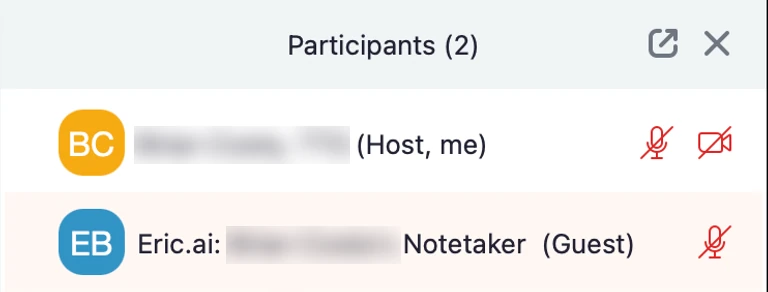
An AI notetaker bot in a Zoom meeting
the bot in the participants list
the bot asks the host to record
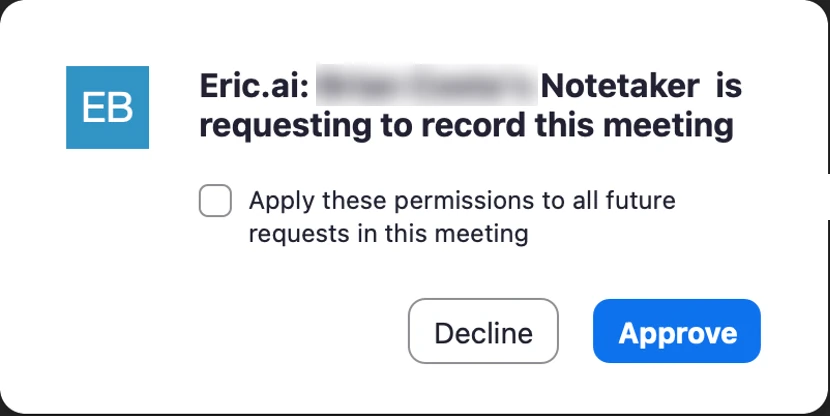
Images: Tufts University Technology Services. Names blurred.
Dropping the bot has one cost: its name in the participant list was itself a notice that the call is being recorded. Without it, telling people is your job (see the consent section below).
5 ways to record a meeting without a bot
There are five practical ways to record a meeting without a bot, and they differ in where the call audio is recorded: on the platform, in a desktop app, in a browser tab, on your screen or on a separate device.
Use the platform's built-in recording
Built-in recording is the meeting platform's own recorder, so what you can do depends on your role, your plan and, in Zoom, whether you joined from the Zoom desktop app or a browser.
- Computer recording, Zoom's name for local recording, works on free and paid accounts but only in the Zoom desktop app for Windows, macOS or Linux, not in the Zoom Web App or the mobile apps (feature comparison by platform). The host records or gives a participant permission (computer recording guide).
- Cloud recording needs a paid plan (Pro, Business, Education or Enterprise; recording plans). Only the host or a co-host can start it, including from the Zoom Web App, and the file goes to the host's cloud storage (starting a cloud recording).
- Google Meet records on eligible Google Workspace and Google One plans, on a computer or Android device. Besides the host and co-hosts, people in the host's organization can record when Host Management is off, and the file goes to the organizer's Google Drive (Google Meet Help).
- Microsoft Teams records on eligible Microsoft 365 plans and saves the file to the organizer's OneDrive, or to the channel's SharePoint site for channel meetings (Microsoft Support).
To start in the Zoom desktop app, click Record (under More if you don't see it), then choose Record on this Computer or Record to the cloud.
You get video, an official file and a platform notice to everyone, but you need host rights or a paid plan, the file stays with the host or organizer, and AI notes depend on the plan: Zoom's meeting summary (an AI Companion feature until June 2026) comes with eligible paid plans (announcement).
Use a desktop app that captures system audio
A desktop app for Windows or Mac listens to your computer's system audio and your microphone, so it works with any call your computer plays, including the Zoom and Teams desktop apps and internet calls.
- Install the desktop app and grant access to the microphone and system audio. On a Mac, that's System Settings > Privacy & Security > Microphone and Screen & System Audio Recording.
- Start capture when the call begins, or let the desktop app detect the meeting.
- Stop it when the call ends, then open the transcript and notes.
Limits that vendors of these desktop apps document:
- Generic speakers: voices are often labeled "Speaker 1" and "Speaker 2", or "Me" and "Them", instead of by name.
- No audio file: many keep only the transcript and notes.
- Everything the computer plays: music and notification sounds end up in the capture too.
Use a browser extension that records the meeting tab
A browser extension makes an audio recording of the browser tab where the call runs, so it works only when the meeting is open in a web browser, not in a desktop app.
Meetlens is one example: a Chrome extension for desktop Chrome 116+ that records the active tab's audio, plus your microphone audio if you allow microphone access. It recognizes Google Meet, Zoom Web (the Zoom Web App), Microsoft Teams Web and Webex, and adds no one to the participant list. It can also record the audio of any other Chrome tab, such as a webinar. Its limits:
- Browser only: the Zoom and Teams desktop apps aren't recorded, so open the call in Chrome.
- Audio only: you get a sound recording of the call, with no video, camera or screen.
- Text after the call: there's no live transcript during the meeting.
- Length: one recording runs up to an hour on Free, 90 minutes on Pro and two hours on Business.
- Open the Google Meet or Zoom Web call in Chrome instead of a desktop app.
- Click the Meetlens icon and choose a report format, such as General Meeting. Allow microphone access so your own voice is recorded, then press Start recording.
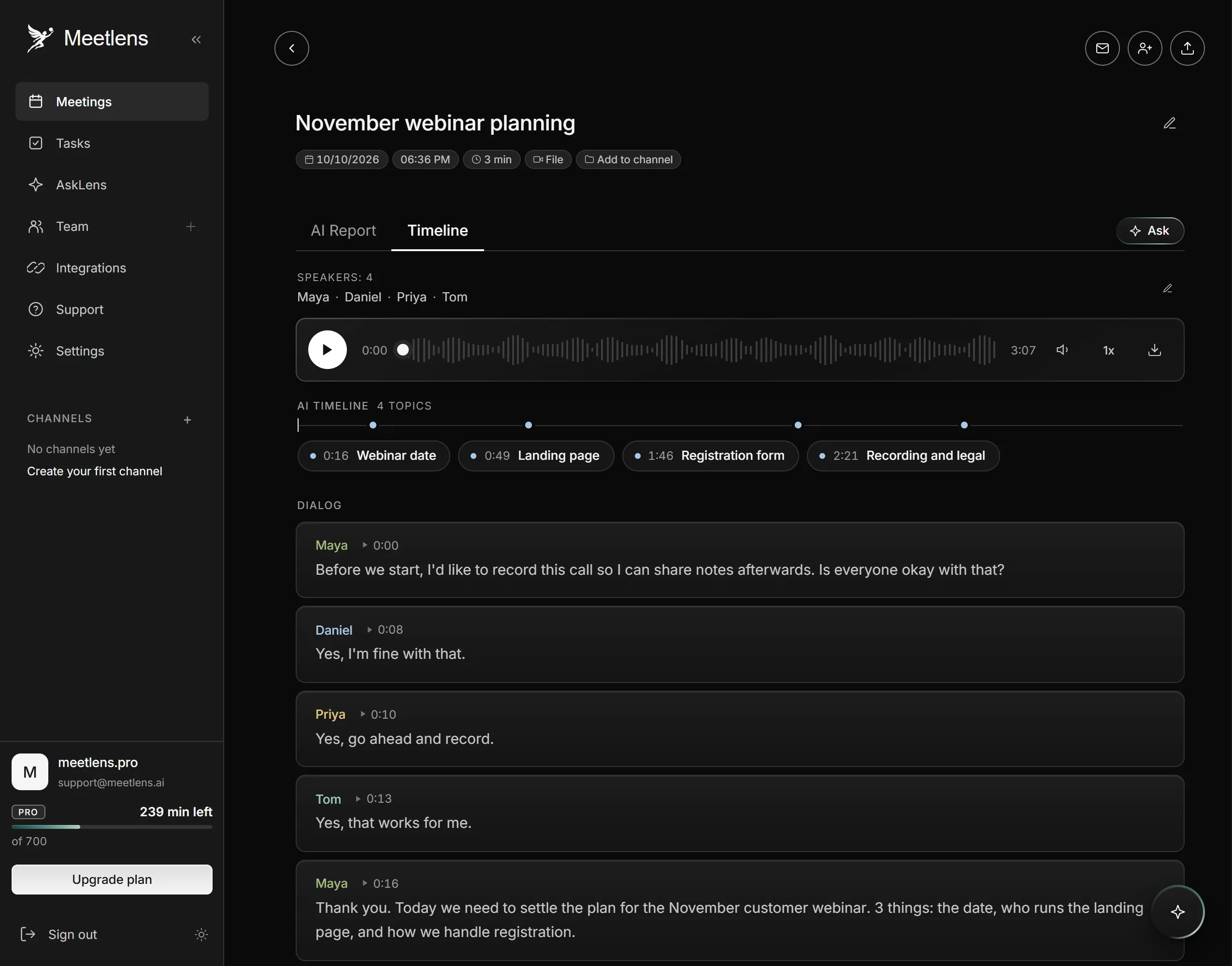
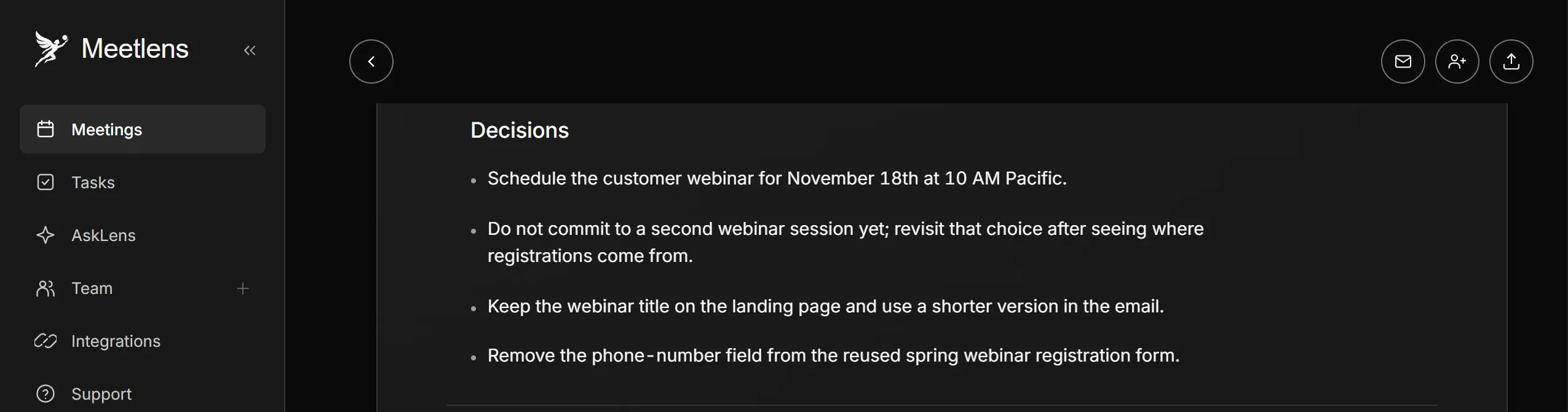
- Stop recording when the call ends. Meetlens prepares a transcript with speaker labels (who said what) and timestamps, an AI report, tasks with owners and due dates, and a clickable timeline.

Try it on your next Google Meet or Zoom Web call: here's how to record meetings from a Chrome tab.
Use a screen recorder
A screen recorder saves the picture and sound of whatever is on your screen, including slides and screen share, but leaves you with a video file rather than a transcript or notes. Your operating system has one built in:
- Windows 11: Snipping Tool records a selected area (Windows logo key + Shift + R) (Microsoft Support) and current versions can include PC audio and your microphone (Windows Insider Blog).
- macOS: the Screenshot toolbar (Shift-Command-5) adds system audio only in macOS 27 or later, through Options > Include System Audio. Earlier versions record from a microphone only (Apple Support).
Screen recording files are large, and notes are a separate job: you transcribe and summarize the video afterward.
Use a hardware recorder for in-person meetings
For in-person meetings, a portable voice recorder (dictation machine) or an AI recorder on the table makes an audio recording of the room with no software and no participant to admit. Meetlens can't record an in-person meeting itself. You can import the file instead (MP3, WAV, M4A, OGG, WebM or MP4, up to 1 GB, or 3 GB on Business) and get the same transcript, timeline and report, within the length limits above.
Bot vs. bot-free recording: what do you gain and lose?
Removing the bot from meeting recording trades one visible participant for limits elsewhere: which meeting clients you can capture, whether the recording includes video and whether speakers are named. The table compares a meeting bot with four ways to record a meeting without a bot; a hardware recorder covers rooms, not calls.
| Meeting bot | Built-in recording | Desktop app | Browser extension (Meetlens) | Screen recorder | |
|---|---|---|---|---|---|
| Shows up as a participant | Yes | No | No | No | No |
| Needs host approval or a paid plan | Often: a host admits it, and in Zoom approves its request to record | Yes: host rights or permission; Zoom cloud recording needs a paid plan | No | No | No |
| Works with desktop meeting apps | Yes | Yes | Yes | No | Yes |
| Works with browser meetings | Yes | Google Meet: yes; Zoom Web App: cloud recording only | Yes | Yes: Google Meet, Zoom Web, Teams Web, Webex | Yes |
| Saves video | Varies | Yes | No | No, audio only | Yes |
| Transcript and AI notes | Yes | Depends on the platform and plan | Yes, often live | Yes, after the call | No |
| Speaker names | Usually, from the participant list | Varies | Often generic ("Speaker 1", "Me" and "Them") | Speaker labels, not names | No |
| Who tells participants | The bot's presence, plus a chat message or platform notice, depending on the tool | The platform's notice | You (some desktop apps offer an optional chat or audio notice) | You do | You |
| Where the data goes | The vendor's cloud | The host's or organizer's cloud account, or your computer | Usually the vendor's cloud; some desktop apps process audio on your computer | Your Meetlens account (no AI training, encrypted at rest) | Your computer |
If you need a video recording, only built-in recording and a screen recorder give you one without a bot.
Speaker names are where bot-free methods most often fall short: a bot usually reads names from the participant list, while capture on your side hears one mixed audio stream and often falls back to generic labels.
Privacy questions apply to every tool, bot or not: where the audio is processed, how long meeting data is kept, whether it trains AI models and what encryption protects it. Meetlens doesn't train its AI on your meetings.
Do you still need consent if no bot joins the call?
Yes — when you record a meeting without a bot, you remove a visible recording notice, not your duty to tell people you are recording.
Platform recordings announce themselves. When Zoom records, participants see Zoom's recording consent prompt and click OK (Got It in some app versions) to stay or Leave to exit (consent guide); Google Meet and Teams notify participants when recording starts (help pages linked above). A bot that records through the platform can trigger these notices too: Teams requires apps that record through its media API to flag the recording first (Microsoft Graph). Capture on your side, in a browser tab, a desktop app, a screen recorder or a phone on the desk, triggers no platform notification, and Meetlens sends participants none.
The law is the same with or without a bot. Federal law, the Wiretap Act in Title I of the Electronic Communications Privacy Act, lets a participant record with one party's consent unless the purpose is a crime or a tort (18 U.S.C. § 2511(2)(d)). Some states require everyone's: California Penal Code § 632 bars recording a confidential communication without the consent of all parties. State recording laws (often called telephone call recording laws) differ, and attendees may be in different states, so follow the strictest one. Company policy or a client's NDA can forbid recording even where the law allows it.
- Start recording with microphone access on, so your announcement is captured.
- Announce it out loud, post the same line in the chat (pin it in Google Meet, where people who join later don't see earlier messages), and repeat it whenever someone joins late:
Quick heads-up: I'm recording the audio of this call for my notes. No bot will join. Is everyone OK with that?
- Wait for each person's yes, ideally a full sentence such as "Yes, I agree to the recording"; a one-word "yes" can be merged into a neighboring speaker's line in a transcript.
- Stop recording if anyone objects, and offer written notes instead.
Which bot-free method fits your meeting?
Pick the meeting recording method by where the meeting runs and what you need afterward: a video file, a transcript, or notes with action items. To record a meeting without a bot, match the method to the call:
| If your meeting… | Use |
|---|---|
| Runs in a browser (Google Meet, Zoom Web, Teams Web, Webex) and you need notes and action items | A browser extension |
| Is on Zoom, you host it on a paid plan and you need the official video | Zoom cloud recording |
| Runs in the Zoom or Teams desktop app | Built-in recording or a desktop app |
| Is a phone call you take on your computer | A desktop app |
| Needs the slides and the picture | A screen recorder |
| Happens in a room | A hardware recorder |
Meetlens can't record desktop-app calls or phone calls, but you can import a Zoom computer recording, which Zoom saves as an MP4 video and an M4A audio file, to get the transcript and report.
Recording a call just for yourself
A platform's own recording can't stay private: in Microsoft Teams, everyone is notified when recording starts, the file goes to the meeting organizer's OneDrive, and guests or people from another organization can't start one. Those rules are on the Microsoft Support page linked above, so you can't record a Teams meeting just for yourself with Teams' recorder. A personal copy needs capture on your side, such as an extension in Teams Web or a desktop app, and stays in your account. You still tell participants first.
Record your next browser meeting without a bot. Add the Meetlens extension to desktop Chrome, open Google Meet, Zoom Web, Teams Web or Webex in a tab, and press Start recording. The Free plan includes 180 minutes a month, and no card is required.
What happens to a Zoom recording after the call?
Next steps for Zoom recordings
Zoom's built-in recording leaves you a file to find, share or request.
Finding the file. A computer recording lands in the default Zoom folder on the computer that made it; a cloud recording appears under Recordings & Transcripts in the host's Zoom web portal. For exact locations by device and plan, see where to find Zoom recordings.
Getting the host's copy. A cloud recording stays in the host's account, and the host can restrict downloads (recording FAQ). The answer to can I download Zoom recordings from a share link depends on those settings.
Recording when you're not the host. A participant has three bot-free options in Zoom: ask the host for permission, join through Zoom Web in Chrome and use an extension, or use a screen recorder. Steps for each are in our guide on how to screen record a Zoom meeting.