How to Record a Zoom Meeting as a Participant: 3 Ways and When You Need Permission
 Meetlens Editorial9 min read
Last reviewed: October 10, 2026. Zoom details checked against the Zoom help pages linked in this article.
On this page
- Can you record a Zoom meeting if you're not the host?
- Way 1 — Ask the host to let you record
- Way 2 — Record Zoom in your browser with a Chrome extension
- Way 3 — Screen record a Zoom meeting
- How to record a Zoom webinar as an attendee
- Do you need permission to record a Zoom meeting as a participant?
- If a recording already exists
To record a Zoom meeting as a participant, ask the host for recording permission, capture the Zoom Web tab with a Chrome extension, or use your computer's screen recorder. Zoom reserves its Record button for the host by default; our overview of bot-free recording methods compares the trade-offs. Whichever you choose, tell everyone on the call. Below: who can record, host permission, browser capture, screen recorders, webinars and consent.
Can you record a Zoom meeting if you're not the host?
Yes, but not with the Record button in the Zoom toolbar unless the host allows it: by default only the host can start a computer recording, and only the host or a co-host can start a cloud recording (Zoom: recording without the host, cloud recording).
Computer recording is Zoom's name for local recording, and the host can open it to you in two ways: grant you recording privileges (Allow Record) or make you an alternative host. In the Zoom web portal, an account admin can also let participants record without asking and auto-approve requests for host permission (computer recording settings).
| Way 1: Host permission | Way 2: Chrome extension (Meetlens) | Way 3: Screen recorder | |
|---|---|---|---|
| Needs recording permission from the host | Yes | No, but everyone's consent | No, but everyone's consent |
| Zoom shows a recording notice | Yes | No: you announce it | No: you announce it |
| What you get | Video recording plus audio file | Audio, transcript, AI report, tasks | Video of your screen with slides |
| Works in | Zoom desktop app | Zoom Web App in desktop Chrome | Any window |
| Free | Yes, on Zoom's Basic plan | Yes, on the Meetlens Free plan | Yes, built into Windows and macOS |
Why can't I record a Zoom meeting?
Zoom's recorder stays out of reach for one of four reasons:
- The host hasn't granted you recording privileges.
- You joined from the Zoom Web App (Zoom in a web browser) or a mobile device, where computer recording isn't supported even with permission (features by platform).
- The account admin turned off Record to computer files.
- You want cloud recording, which takes a host or co-host on a paid plan.
Way 1 — Ask the host to let you record
The cleanest way to record a Zoom meeting as a participant is to ask the host for recording permission and use Zoom's Record on this Computer option in the Zoom desktop app. The steps follow Zoom's computer recording guide.
The host:
- Clicks Participants in the meeting controls.
- Clicks More next to your name.
- Clicks Allow Record (Allow to Record Local Files in some app versions).
You:
- Wait for Zoom's notification that you have recording privileges.
- Click Record in the meeting controls toolbar.
- Choose Record on this Computer if a menu appears.
Zoom desktop app: the host lets a participant record
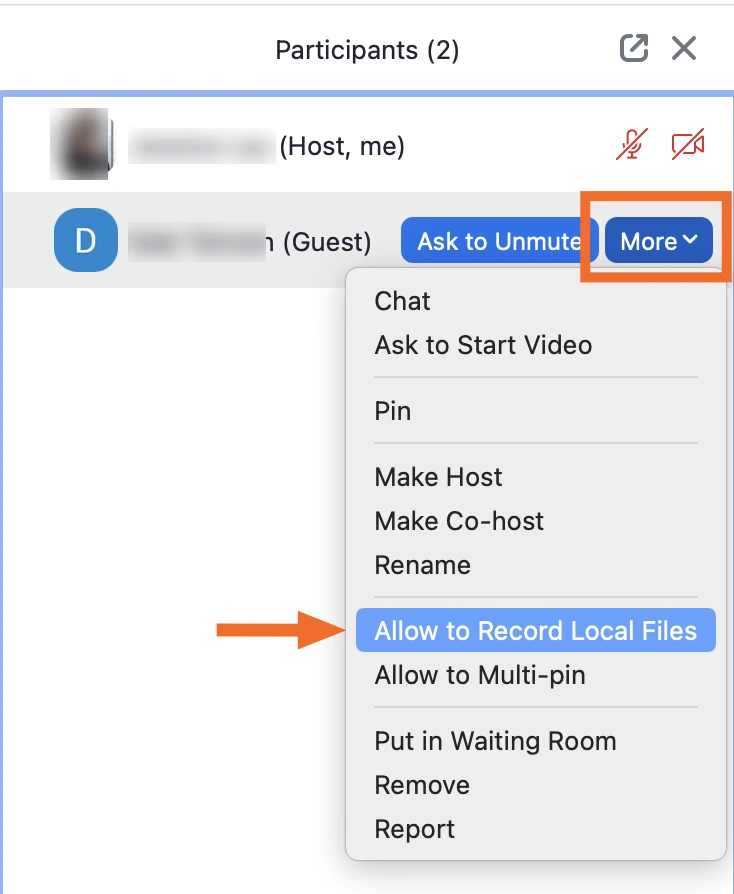
Image: Zapier. Names and photo blurred.
The host can revoke it with More > Forbid Record. After the meeting, Zoom converts the recording into an MP4 video and an M4A audio file on your computer. Cloud recording needs the host to make you a co-host on a paid account, and the file still lands in the host's recordings, not yours.
A request you can copy:
Hi [name], could you give me recording permission (Participants → More → Allow Record)? I'd like to keep the session for my notes and won't share it outside the team.
Can you record free Zoom meetings?
Yes, computer recording works on Zoom's free Basic plan, but only in the Zoom desktop app, and meetings hosted on Basic end after 40 minutes (Zoom pricing). Cloud recording needs a paid plan.
How do you stop recording?
Click Pause or Stop Recording at the bottom of the Zoom window, or click the recording indicator in the top-left corner. Stopping and starting again creates a new video file; pausing and resuming keeps the same file. Closing your laptop before Zoom finishes converting the files can corrupt them.
Way 2 — Record Zoom in your browser with a Chrome extension
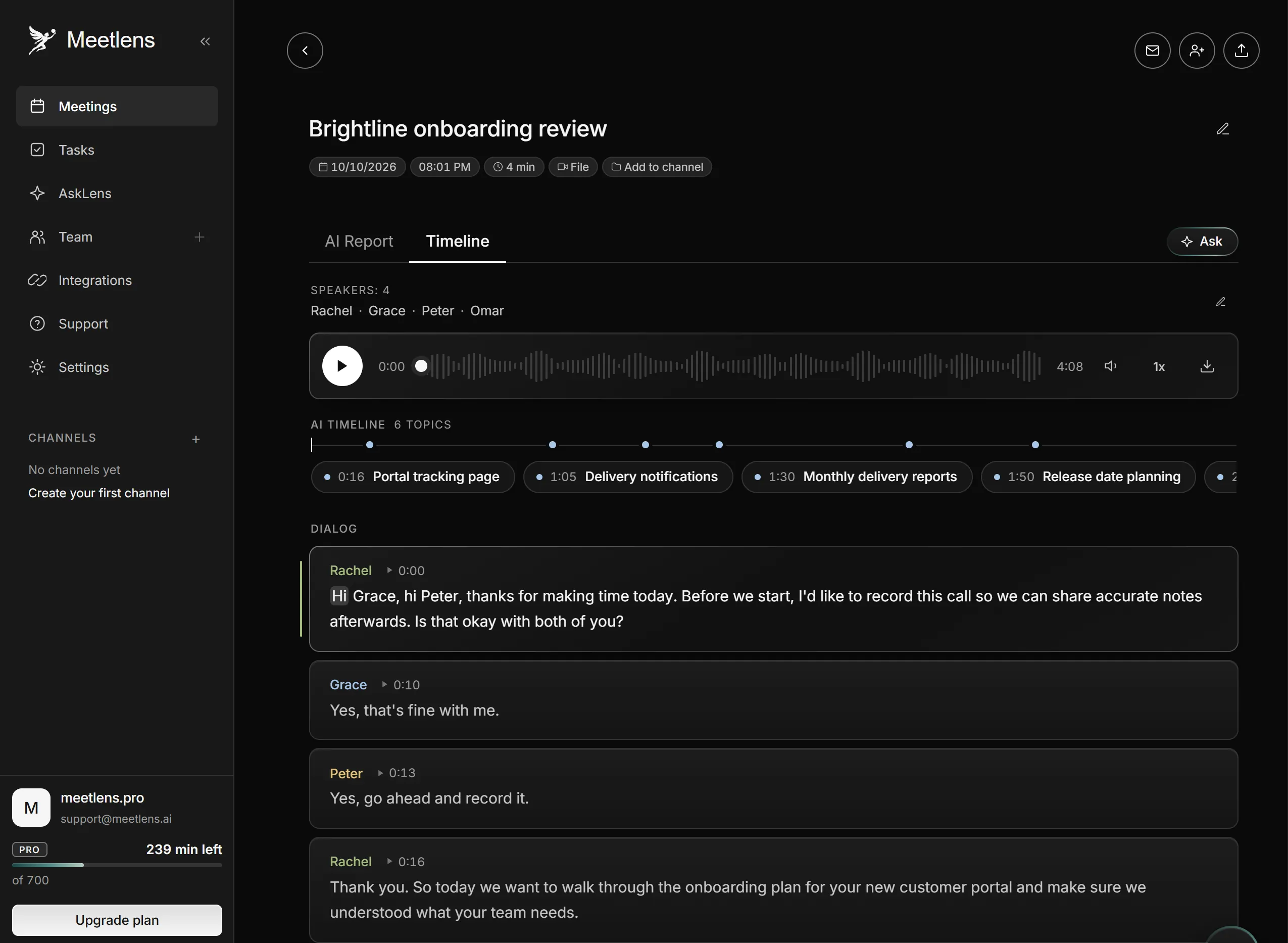
If you join Zoom from Chrome instead of the desktop app, a Chrome extension like Meetlens can capture the meeting tab's audio and turn it into a transcript and notes; it doesn't use Zoom's recorder, so it needs your participants' consent rather than the host's recording permission. To record a Zoom meeting as a participant this way:
- Join from the web browser. Open the meeting link in Chrome, click Cancel when the page offers to open Zoom, then click Join from your browser at the bottom (joining a meeting). If the link is missing, the host hasn't enabled browser joining.
- Pick a report format. Click the Meetlens icon and choose Client Meeting in the format drop-down above Start recording for a call with a customer; General Meeting, the default, fits any other call.
- Turn on your microphone and start. Allow microphone access so your voice is recorded along with the tab audio, press Start recording, then announce it.
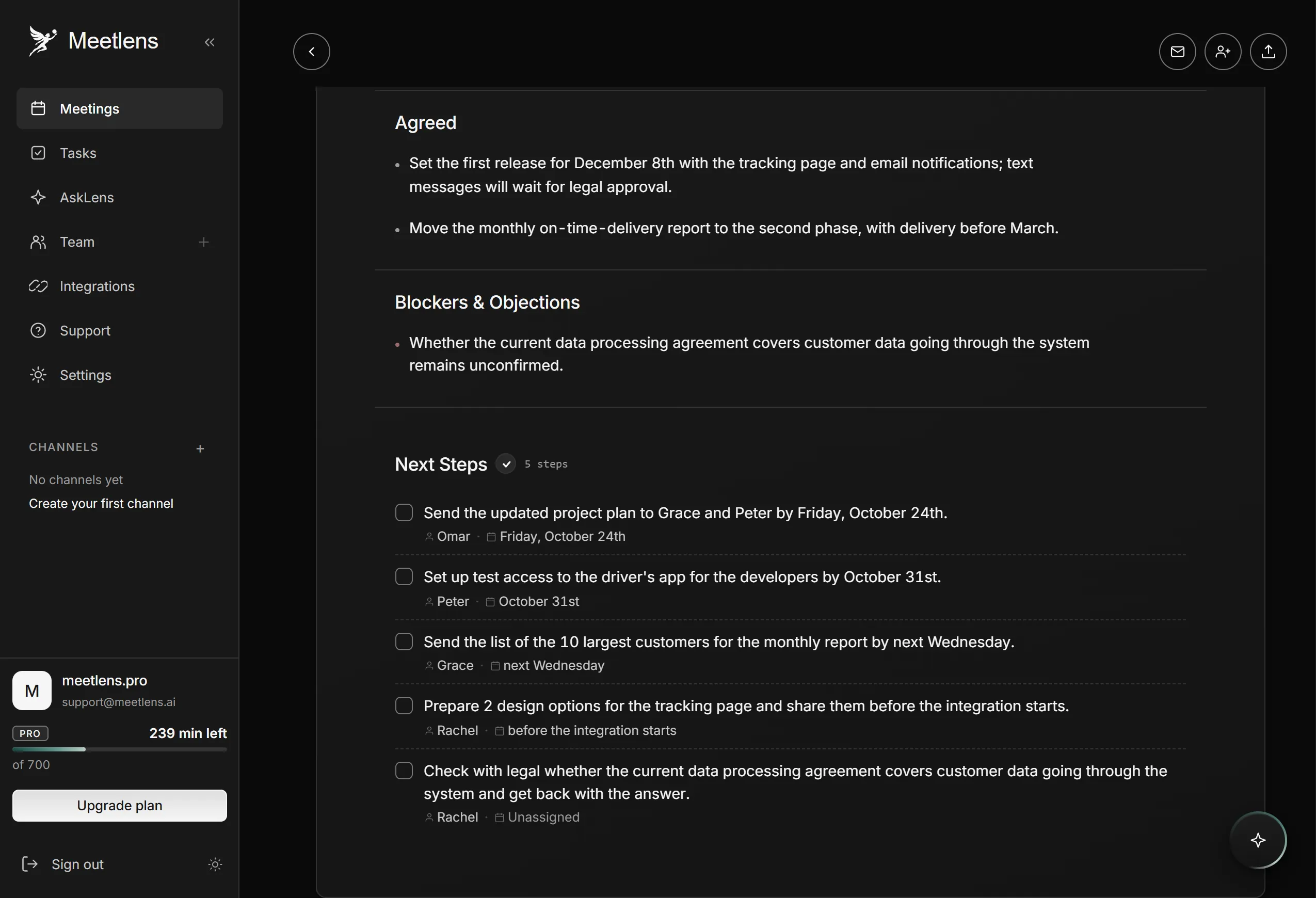
- Stop and review. Press Stop recording when the call ends to get a transcript with speaker labels and timestamps, the report, tasks with owners and due dates, and a clickable timeline.

Know the limits:
- Zoom Web only: desktop Chrome, not the Zoom desktop app.
- Audio only: no video, camera or shared screen.
- Text after the call: no live transcript.
- Length: one recording runs up to an hour on Free, 90 minutes on Pro and two hours on Business.
Meetlens sends the audio to its servers over an encrypted channel while it records. It doesn't train its AI on your meetings, and recordings are encrypted at rest.
Zoom shows no consent prompt for Meetlens, and Meetlens notifies no one, so announcing is your job; recording consent rules for meetings depend on the state. The host is one of the people you ask: if the host says no, don't record.
To try it on your next call, see how to record Zoom Web calls in Chrome with Meetlens.
Way 3 — Screen record a Zoom meeting
A screen recorder built into Windows or macOS captures whatever is on your screen, so it records the Zoom window, slides included, without asking Zoom for permission. You still need everyone's consent to record a Zoom meeting this way.
On Windows
Xbox Game Bar records the Zoom window with the call audio once you set it to capture all sounds (Microsoft Support):
- Open Settings, search for Xbox Game Bar and turn it on.
- Press Windows logo key + G, open the Game Bar settings, go to Capturing and choose All for audio.
- Click the Zoom window and press Windows logo key + Alt + R to start; press it again to stop.
The MP4 file lands in Videos > Captures. Snipping Tool's Record mode is the other built-in option.
On a Mac
The Screenshot app and QuickTime Player record the Zoom window, but they capture other people's voices only in macOS 27 Golden Gate or later (Apple Support):
- Press Shift-Command-5, or open QuickTime Player and choose File > New Screen Recording.
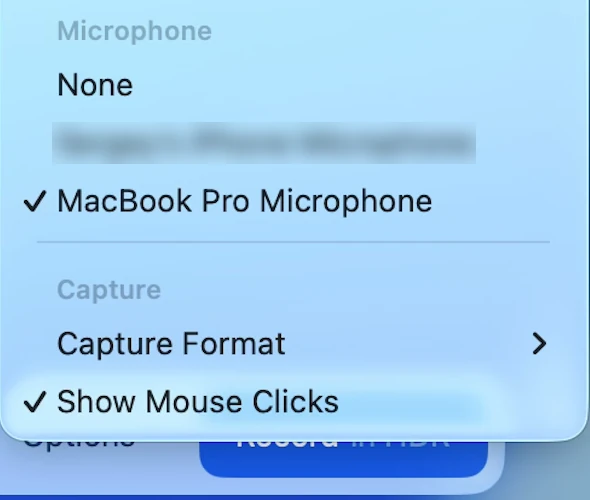
- Click Options, pick a microphone for your own voice and, in macOS 27 Golden Gate or later, choose Include System Audio in the Capture section.
- Click Record. To stop, click the Stop button in the menu bar or press Command-Control-Esc.
Earlier macOS versions record only from a microphone. The movie file goes to your desktop.
macOS Screenshot toolbar: Options
options menu: pick the microphone for your own voice
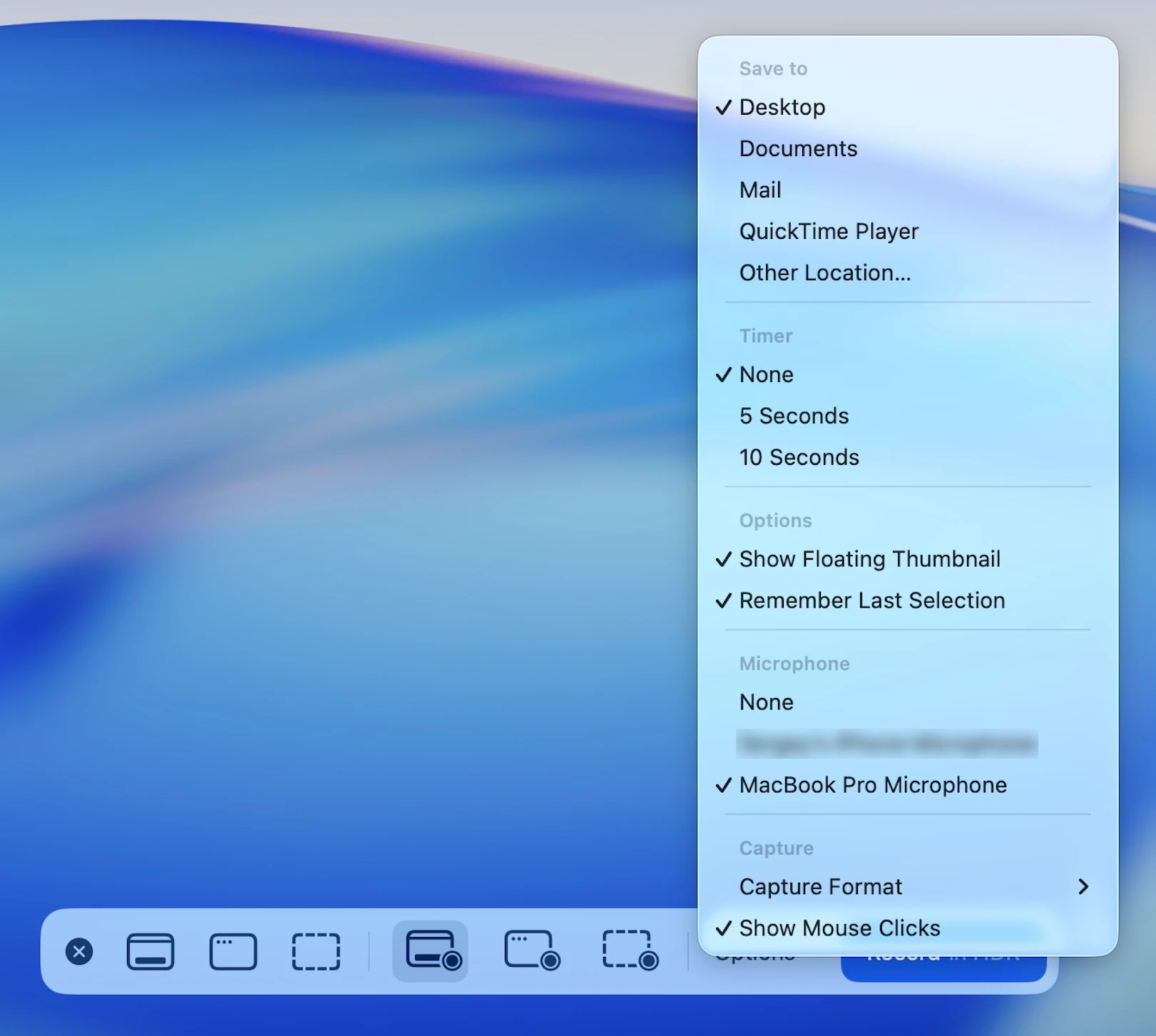
macos 27 golden gate and later: include system audio
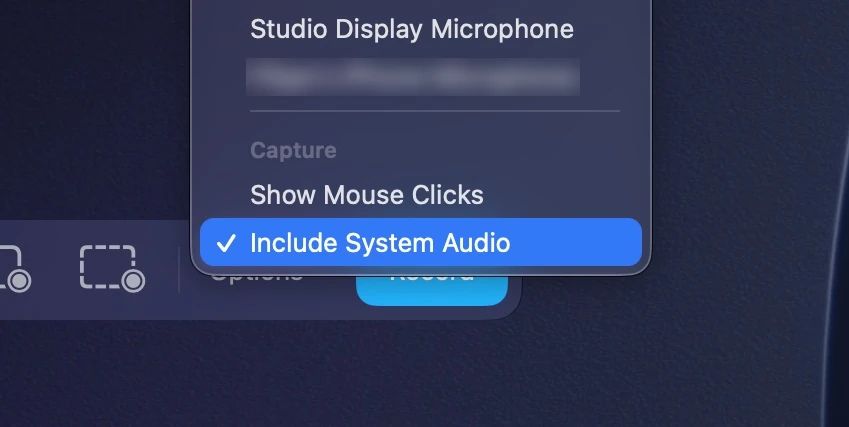
Images: Screen Charm (macOS 26); Filipe Espósito (macOS 27). Device names blurred.
Screen recording software gives you the slides, but files are large, there's no text, and the Zoom window must stay uncovered.
With Zoom's Prevent screen capture setting on, the meeting window doesn't appear in images captured with Print Screen or third-party tools, and people on Linux or the Zoom Web App join with audio only (Zoom Support). Treat that setting as the host's answer: ask before recording any other way.
How to record a Zoom webinar as an attendee
As a webinar attendee you can't use Zoom's Record button at all — hosts can grant local recording only to panelists — so start by asking whether a replay will be shared. Unlike when you record a Zoom meeting as a participant, a webinar has no Allow Record for attendees: the host's panelist menu has Allow to record local files, the attendee menu has no recording option, and panelists can't start a cloud recording (attendees and panelists).
A webinar can be recorded by its host, so ask the organizer about a replay.
If there's no replay and the organizer agrees to your recording:
- For slides and video, use a screen recorder (Way 3).
- For notes, use Meetlens. It records the audio of any Chrome tab, including a webinar open in the Zoom Web App, and gives you a transcript and report without slides or video. General Meeting, the default report format, gives a Brief and the Meeting Topics the speakers covered.
Read the registration terms first: they can restrict recording or sharing the content.
Do you need permission to record a Zoom meeting as a participant?
Yes in practice: Zoom's terms forbid using Zoom in ways that break laws requiring the consent of people being recorded, and some U.S. states require everyone on the call to agree. Three layers of rules apply:
- Zoom's terms. The Prohibited Uses section of the Zoom Terms of Service bars using Zoom in violation of "Laws requiring the consent of subjects of audio and video recordings."
- The law. The federal Wiretap Act, Title I of the Electronic Communications Privacy Act, lets a participant record with one party's consent unless the purpose is a crime or a tort (18 U.S.C. § 2511(2)(d)). California Penal Code § 632 requires the consent of all parties to a confidential communication. State telephone call recording laws differ, and attendees may be in different states, so follow the strictest one.
- Work rules. An employer's policy or a customer contract can forbid recording even where the law allows it.
To get consent:
- Start recording with your microphone on, so your announcement is captured.
- Announce it out loud and post the same line in the Zoom chat:
Heads-up: I'm recording the audio of this meeting for my notes. Is everyone OK with that? If not, I'll stop.
- Wait for each person's yes, the host's included, and repeat the line for anyone who joins late. Ask for a full sentence, such as "Yes, I agree to the recording"; a one-word "yes" can be merged into a neighboring speaker's line in a transcript.
- Stop recording if anyone objects, and take written notes instead.
Will Zoom notify others if I record?
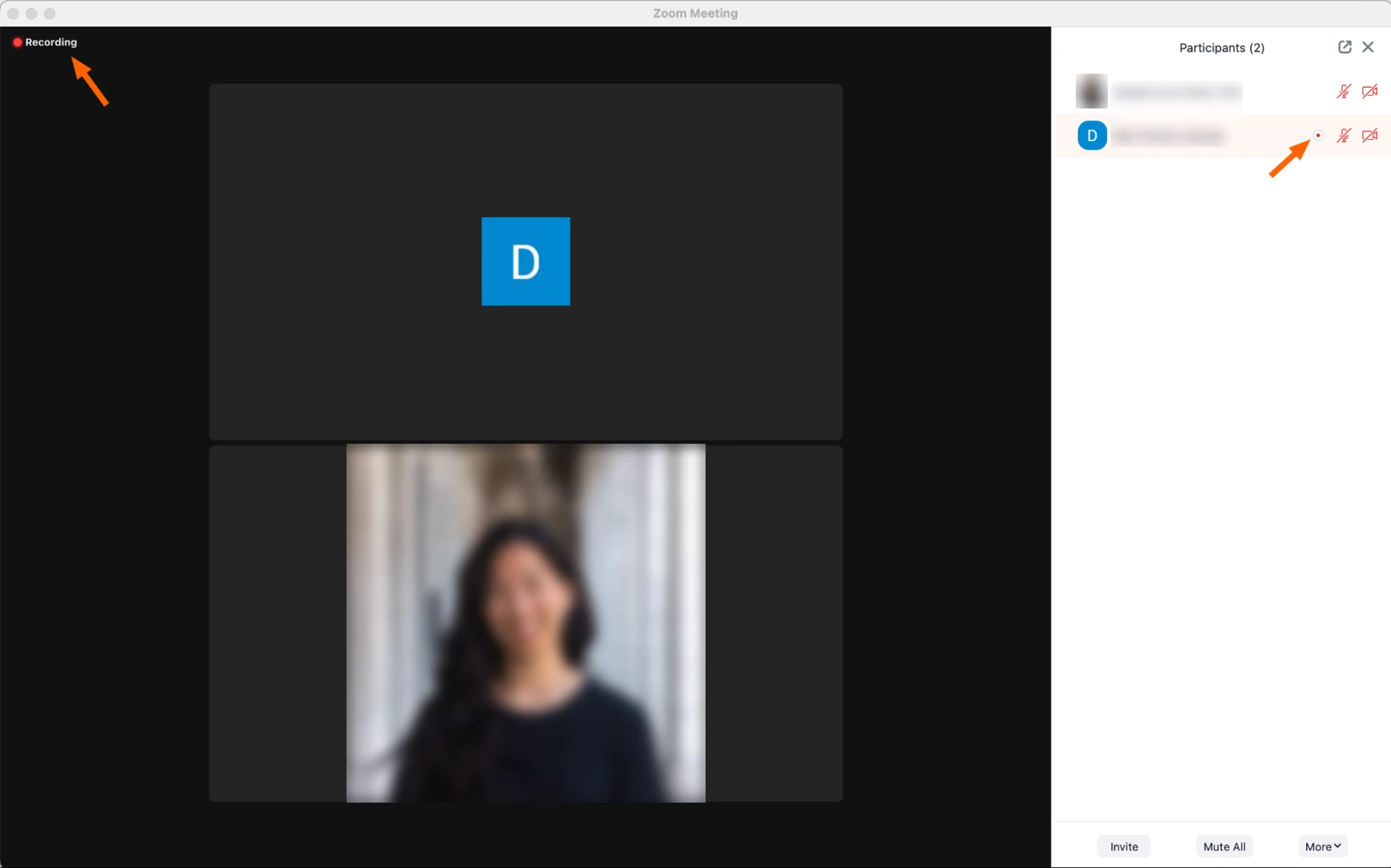
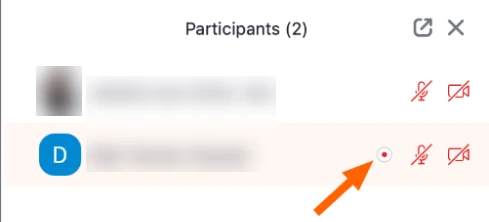
Zoom notifies everyone only when the recording runs through Zoom itself. With Way 1, participants see a recording indicator, a recording icon next to your name, and Zoom's consent prompt, where they click OK (Got It in some app versions) to stay or Leave to exit (consent to be recorded). An extension or a screen recorder triggers no recording notice, so respecting everyone's privacy means telling them yourself. Zoom's terms don't ban screen recorders by name; what they forbid is using Zoom in a way that breaks consent laws.
What other attendees see when a participant records
recording indicator and the icon next to the participant
recording consent prompt
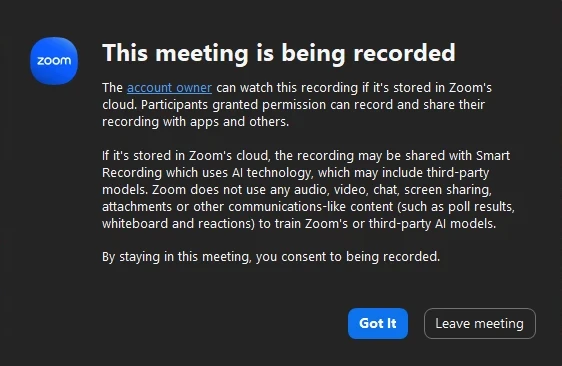
Images: Zapier; Zoom Community. Names and faces blurred.
Some meetings carry an audio watermark, an inaudible signature of each attendee that an admin can turn on for sign-in-only meetings. If someone records the audio with a third-party tool and shares it without permission, Zoom can help identify who did it (audio watermark). Zoom's own recordings don't carry it.
Can you record a Zoom meeting without anyone knowing?
Don't. Recording people who haven't agreed is illegal in all-party consent states, which also puts it against Zoom's terms. An audio watermark can trace a shared file back to you, and a secret recording costs you everyone's trust. Announce it, or take notes by hand.
Got a recording from the host instead, or can't find your own?
If a recording already exists
An existing Zoom recording is a file to get or find, not a new recording to make.
A cloud recording stays in the host's account, and you can download it from a share link only if the host turned on downloads (managing cloud recordings). Once you have that link, here's how to download a recorded zoom meeting.
A recording you made with Record on this Computer is saved in the Zoom recording folder on the computer that made it. If it isn't there, the answer to where do zoom recordings go depends on your device and settings.