How to Download a Zoom Recording From a Link and Save It as MP4
 Meetlens Editorial9 min read
Last reviewed: October 10, 2026. Steps checked against the linked Zoom Support articles.
On this page
- Can you download a Zoom recording from a shared link?
- How to download a Zoom recording from a shared link
- How to download your own Zoom cloud recording
- Why is there no download button on a Zoom recording?
- How to save a Zoom recording as an MP4
- How to convert a .zoom file to MP4
- What to do with the recording after you download it
To download a Zoom recording from a link, open it in a desktop browser and click Download — the Download button on the recording page appears only if the host allowed viewers to download. Zoom's cloud recording, one of several ways to record without a bot, stays with the host, so a shared link is how you get it. Below: permissions, steps, a missing Download button, MP4 and .zoom files.
Can you download a Zoom recording from a shared link?
Yes, you can download a Zoom recording from a shared link if the host turned on downloads for viewers; otherwise the link lets you watch it but not save it.
A cloud recording is available only to the host of the session until the host shares it (Zoom: troubleshooting missing cloud recordings). When the host shares it, the share setting "Viewers can download" lets viewers download the video "in addition to online viewing" (Zoom: managing and sharing cloud recordings).
Permission to download is set per recording, so your role decides the answer:
| Who you are | What you can download |
|---|---|
| Host of the meeting | Any of your own cloud recordings (steps below) |
| Delegate with scheduling privilege | The host's cloud recordings: open, download and share, but not delete |
| Viewer, downloads allowed | The video (MP4) from the shared link |
| Viewer, downloads off | Nothing: watch, then ask the host for a copy |
| Participant without a link | Nothing: the recording stays visible only to the host |
| Anyone, for a computer recording | Only the file the person who recorded it sends you: there is no Zoom link for it |
A computer recording, Zoom's name for a local recording, has no Zoom link: "You can't upload computer recordings to the Zoom cloud" (Zoom: sharing computer recordings).
How to download a Zoom recording from a shared link
To download a Zoom recording from a link, open the link in a desktop browser, enter the passcode if asked, and click Download on the playback page.
- Open the shared link in a browser on your computer, such as Google Chrome.
- Enter the passcode if the page asks for one. A host who clicked Copy link and passcode sent you both in one message. If the host requires it, sign in to Zoom or register with your name and email first.
- Click Download at the top of the recording page, a button or a down-arrow icon depending on the layout, and confirm if a prompt appears.
- Pick where to save the file if your browser asks. Otherwise it goes to your Downloads folder.
Zoom describes this download as the video, so expect an MP4 file. The transcript appears next to the video only if the host turned on "Viewers can see transcript" and the recording has one. "Viewers can see the chat" works the same way for the chat history (Zoom: managing cloud recording settings). Zoom doesn't describe downloading either file from a shared link, so for the VTT transcript or the chat file, ask the host, or transcribe the video yourself.
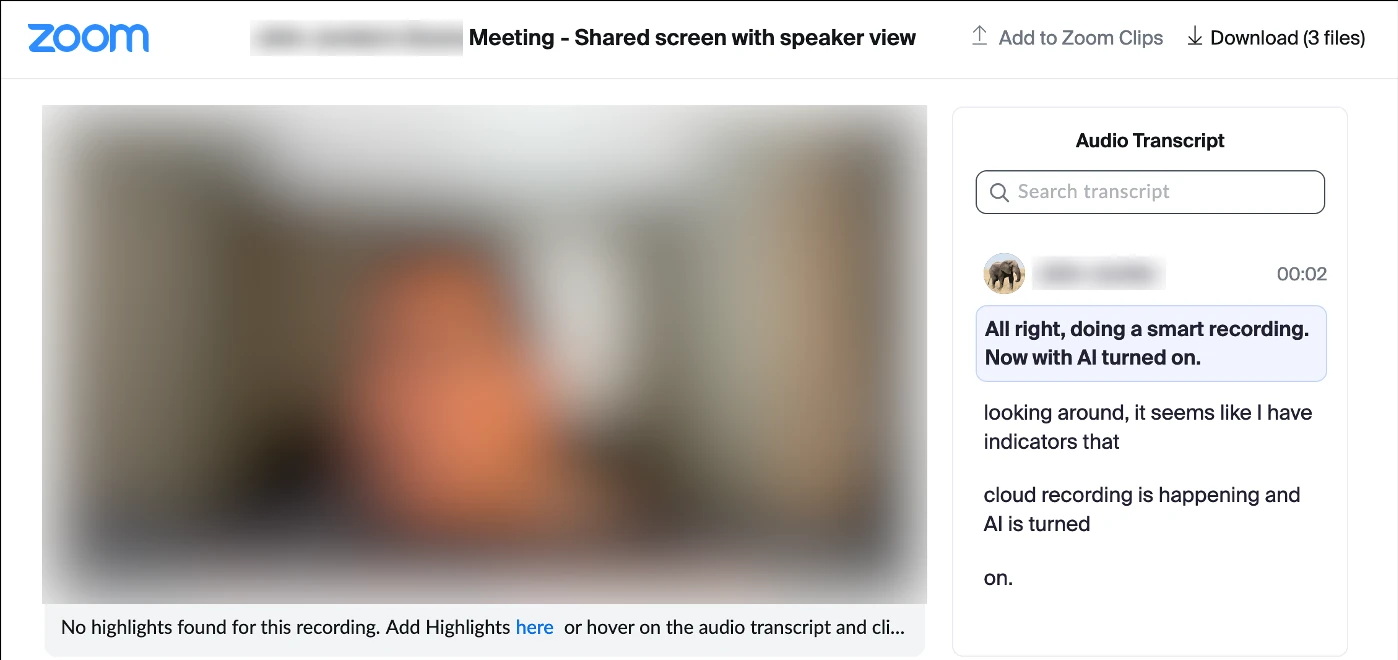
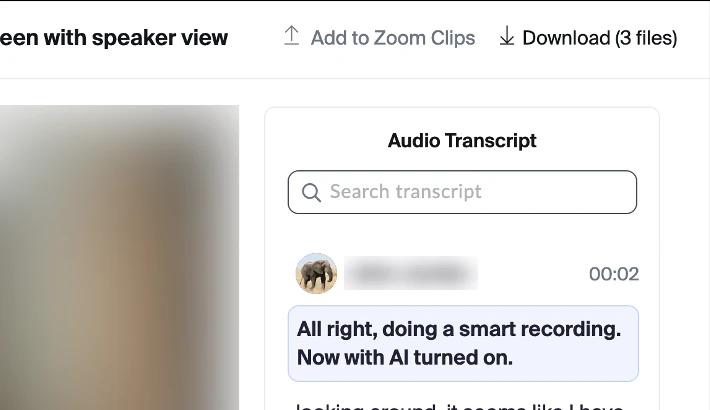
Image: Tufts University Technology Services. Names blurred.
Downloads aren't anonymous: the host's Recording Analytics counts every click on Download and shows the name and email of viewers signed in to Zoom (managing-and-sharing page above).
On a phone
Zoom's help describes downloading a shared recording only in a computer's web browser and gives no steps for an iPhone (iOS), an Android phone or the Zoom mobile app, so open the link on a computer to save the file.
How to download your own Zoom cloud recording
If you hosted the meeting, download the recording from the Zoom web portal: Recordings & Transcripts → Cloud recordings → open the recording → Download.
- Sign in to the Zoom web portal.
- Click Recordings & Transcripts, then the Cloud recordings tab.
- Click the thumbnail of the recording to open it.
- Click Download, then click Download again in the confirmation prompt.
A Zoom cloud recording opens only after Zoom finishes processing it. Cloud recordings are also available in Zoom Hub in the Zoom desktop app.
A cloud recording can include these files (Zoom: recording file formats):
| File | What's inside |
|---|---|
| MP4 | Video with audio |
| M4A | Audio only |
| TXT | Chat messages sent to everyone |
| VTT | The audio transcript, if one was generated |
| CC.VTT | Closed captions |
VTT files use the WebVTT text format, so a text editor opens them (Zoom: audio transcription). If you need only a transcript, take the M4A: the same audio without the video, so a much smaller file to upload.
Zoom web portal: the files of one cloud recording
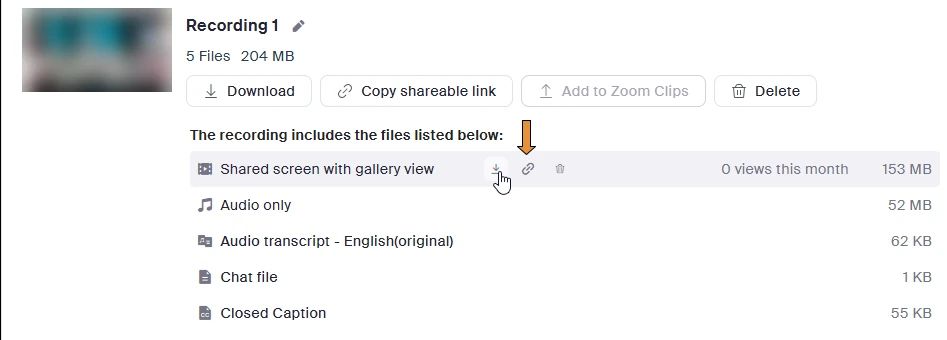
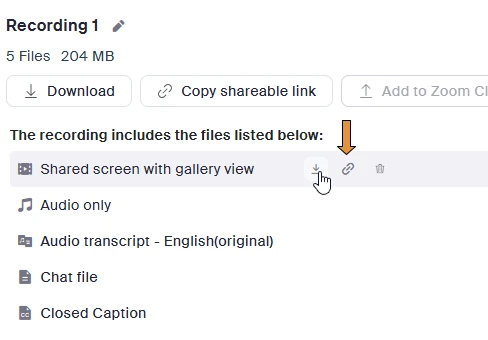
Image: Portland Community College. Faces blurred.
Why is there no download button on a Zoom recording?
The Download button on a Zoom recording is missing when the host or an account admin turned downloads off, when the link has expired or requires sign-in, or when your browser window is too narrow to show it. Check the causes in this order:
- The host turned off "Viewers can download". Ask the host to turn it on (message below).
- An admin limited downloads. In the account settings, an admin can turn off Cloud recording downloads or check "Only the host can download cloud recordings", and the host can't change a locked setting. Ask the host for the MP4.
- The link expired or changed. The host can set an expiration date, and Zoom generates a new link when the host changes who the recording is shared with. Ask for the current link.
- The recording requires sign-in. The host can limit it to people added by email address or require authentication, such as a Zoom or company SSO sign-in. Sign in with the email the host used.
- You must register first. The host turned on "Viewers need to register to watch", so registration with your name and email address comes first.
- It's still processing. Viewers see a processing message until Zoom finishes. Try later.
- It's in the trash. An invalid link can mean the host trashed the recording, which is deleted after 30 days (Zoom: recording FAQ). Ask the host to restore it.
- Your browser window is too narrow. The same FAQ says the download icon needs a window at least 1024 pixels wide. Maximize the window and set the screen to at least 720p (1280 by 720).
Some accounts also auto-delete cloud recordings after a set number of days, so download the ones you need soon.
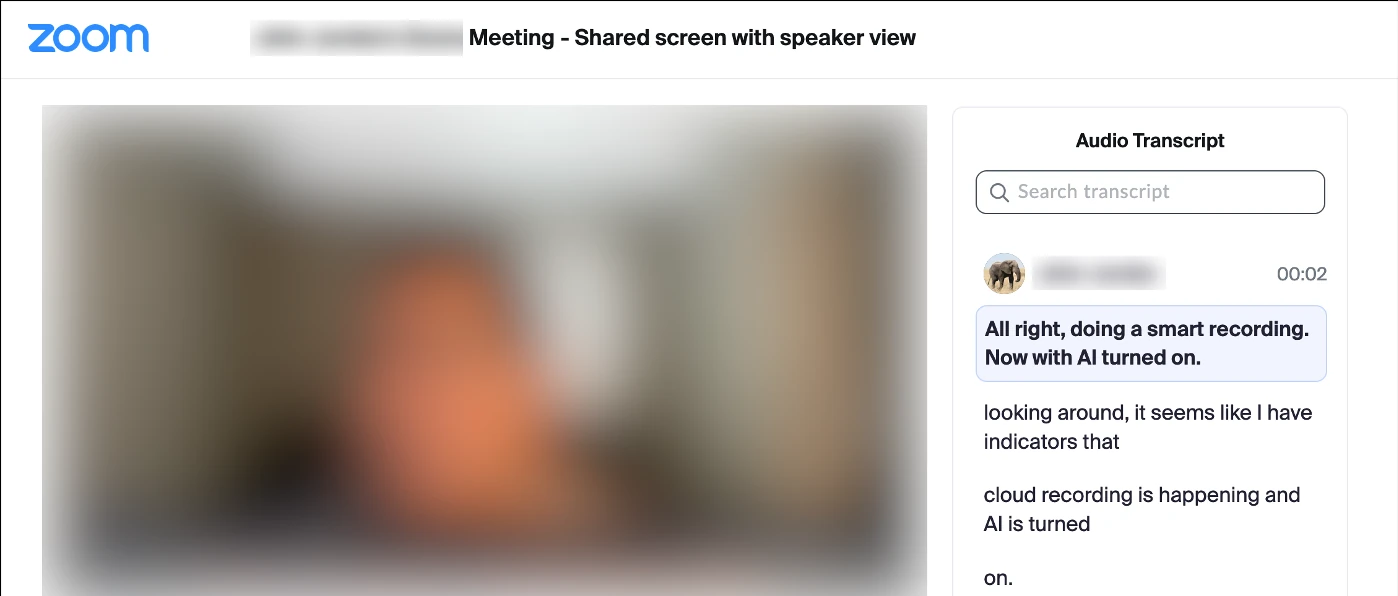
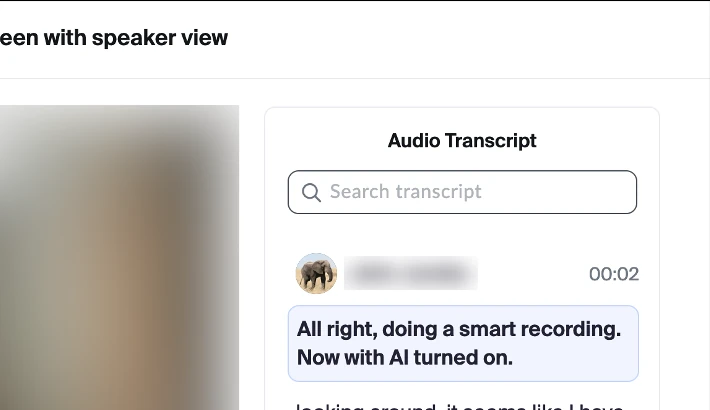
Image: Tufts University Technology Services, edited: the Download and Add to Zoom Clips buttons removed to show the page with downloads off. Names blurred.
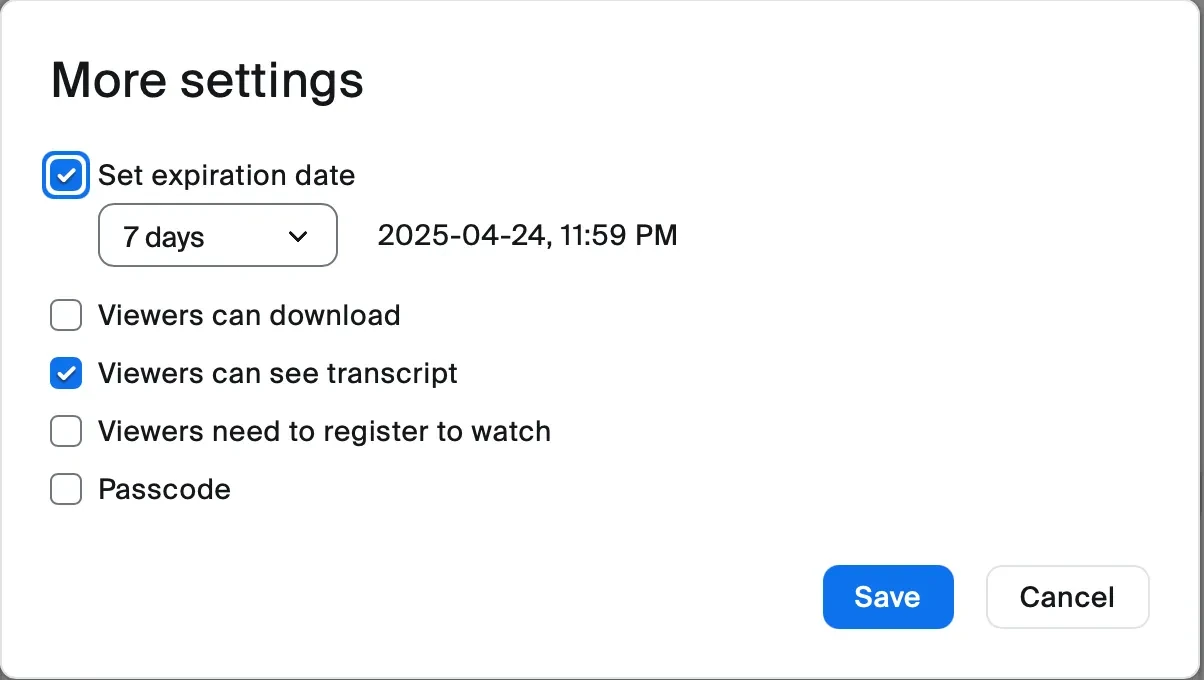
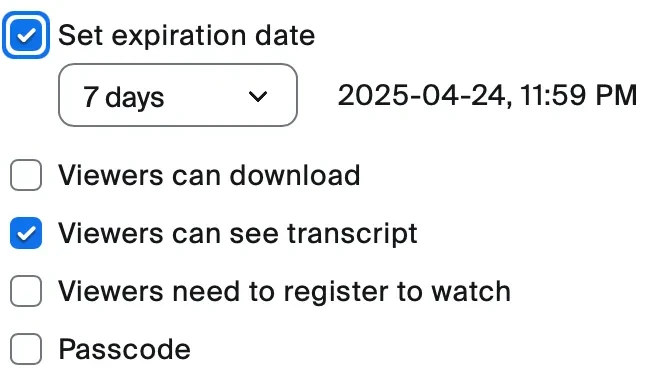
Image: The University of Tokyo, utelecon.
Send the host two sentences you can copy:
Could you turn on "Viewers can download" for the recording of [meeting name, date], or send me the MP4? I need it for [notes / training / archive].
Don't work around a missing Download button. Zoom's FAQ says that when the host restricted downloads, "you can't download the recording even if you use a tool to search the URL for a download." This guide skips downloader browser extensions, developer tools and scripts: they undo the owner's choice.
How to save a Zoom recording as an MP4
Zoom already saves recordings as MP4: cloud downloads arrive as MP4 files, and computer recordings are converted to video[number].mp4 automatically when the meeting ends.
When that conversion finishes, Zoom opens the folder with the files. A Zoom recording made on a computer names the video file video[number].mp4 and the audio-only file audio[number].m4a (Zoom: starting a computer recording). On Windows, the folder can also hold playback[number].m3u, an M3U playlist that plays the individual MP4 files; it isn't a video itself (file formats page above).
So to save a recorded Zoom meeting as an MP4, you usually do nothing. Convert by hand only when the folder holds .zoom files instead of an MP4.
How to convert a .zoom file to MP4
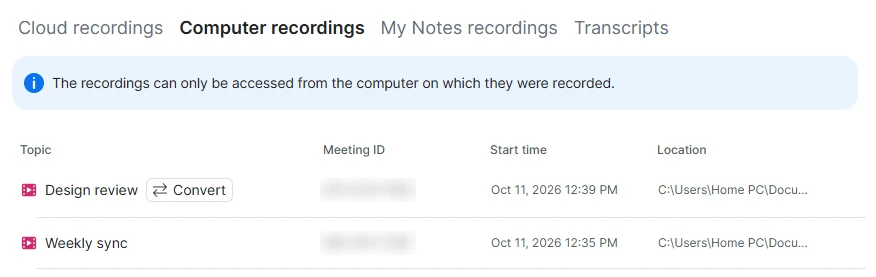
To convert a .zoom file to MP4, click Convert next to the recording in the Zoom desktop app or double-click double_click_to_convert_01.zoom in the recording folder.
A .zoom file is what's left when Zoom's automatic conversion of a computer recording didn't finish. It exists only on the computer that made the Zoom recording: "Zoom does not retain a copy and cannot recover a lost local recording" (Zoom: troubleshooting missing meeting recordings). Keep the folder until you have the MP4, and use Zoom's own converter: it's the only one Zoom documents.
Why the conversion failed
Zoom lists these causes (Zoom: troubleshooting computer recording issues):
- The computer slept or shut down. Closing a laptop or turning the computer off stops the conversion, and the computer recording page above warns the files can end up non-recoverable.
- Low disk space, shown as Error Code 614. Free up space, then convert again.
- A renamed file. Renaming a double_click_to_convert file mid-conversion can corrupt it.
- An invalid or network folder. Keep the recording location on a local drive: the computer recording page above warns that cloud-sync folders, external drives and network storage can break saving and converting.
Convert in the Zoom desktop app
- Open the Zoom desktop app and click the Home tab.
- Click Open recordings below your list of meetings. The Hub tab opens.
- Click Recordings & Transcripts, then the Computer recordings tab.
- Click Convert next to the meeting topic.
These steps match Zoom Workplace 7.2 (October 2026) and the Zoom guide to managing computer recordings. Earlier versions keep the list under My files → Meeting recordings; versions before Hub use Meetings → Recorded → the meeting → Convert. In the same list, hover over a recording, click the ellipsis icon and choose View file location to open the recording folder.
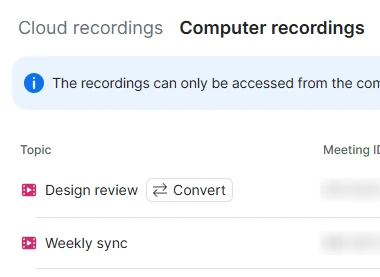
Zoom desktop app: a computer recording that still needs converting
Convert manually on Windows
- Double-click double_click_to_convert_01.zoom in the recording folder. Start with _01; if _02 stays unconverted, do the same with it. With the Zoom desktop app installed, Windows already opens .zoom files with Zoom, so the conversion starts right away.
- Wait for the conversion to finish. If nothing happens, convert from the Zoom desktop app instead (steps above).
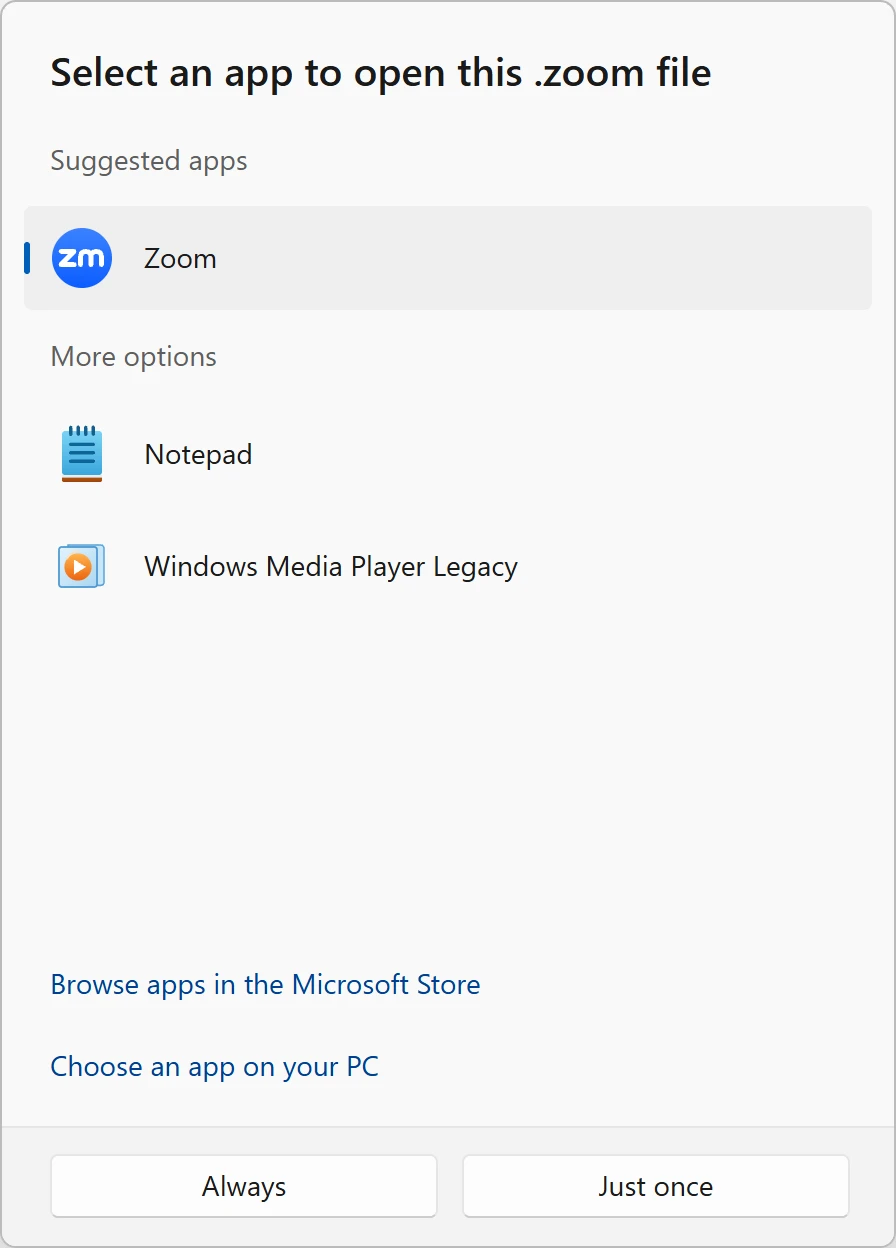
If Windows asks which app to open the file with, the link between .zoom files and Zoom is lost. Point Windows to Zoom's converter, which Zoom's guide places in the AppData folder:
- Pick an app on your PC: in Windows 11, click Choose an app on your PC; in Windows 10, click More apps, then Look for another app on this PC.
- Go to the AppData folder at C:\Users<username>\AppData\Roaming\Zoom\bin (paste the path into the address bar), select zTscoder.exe and click Open.
- Click Always or Just once in Windows 11. In Windows 10, check "Always use this app to open .zoom files" if you want later conversions to work the same way, then click OK.
Windows 11: open the .zoom file with Zoom’s converter
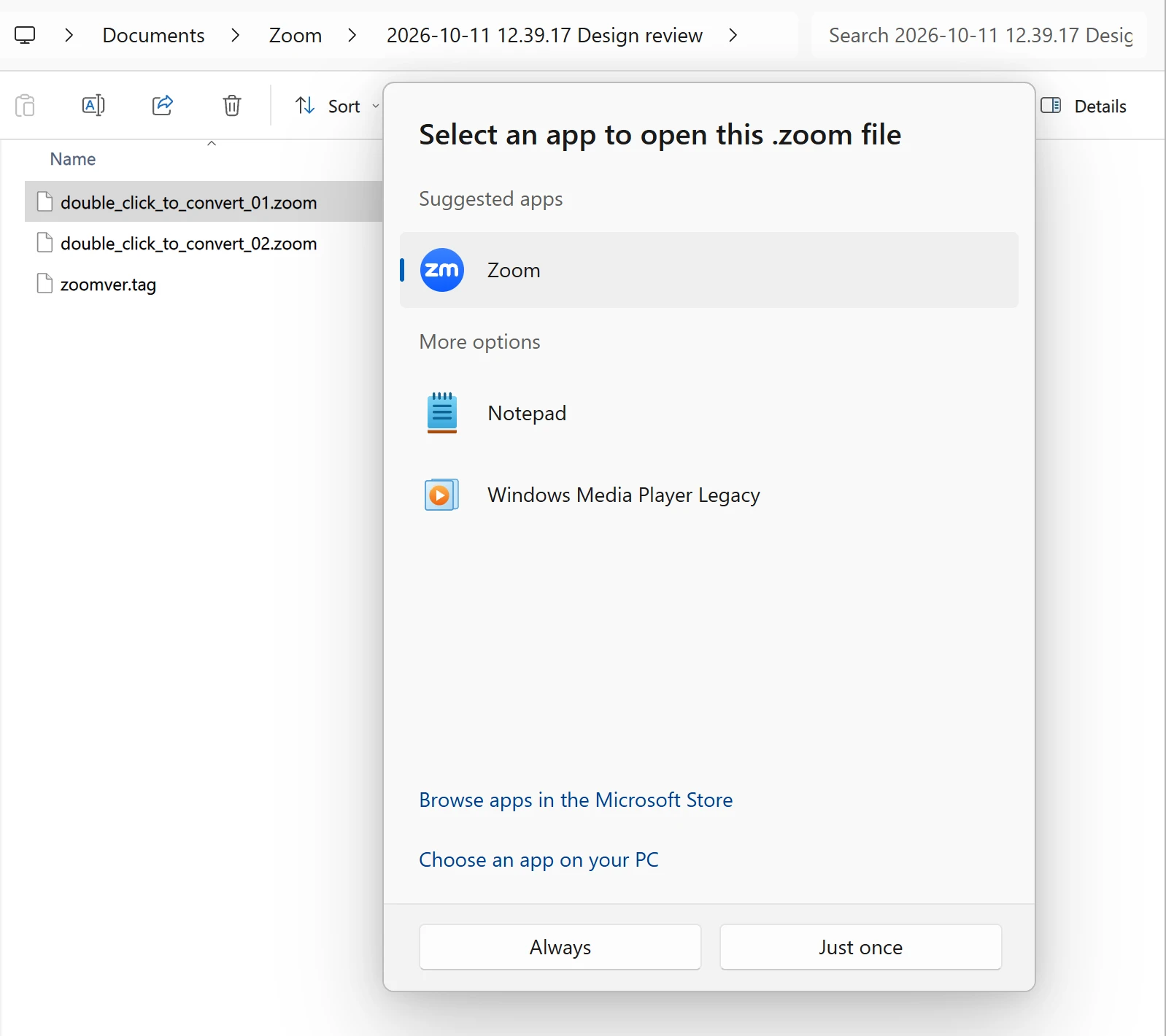
Recreated from Windows 11 for this guide; file names from a real Zoom recording.
Convert manually on a Mac
On macOS, Zoom's troubleshooting guide uses Transcode, a converter app inside the Zoom app package.
- In Finder, click Go → Applications.
- Right-click zoom.us and choose Show Package Contents.
- Open Contents → Frameworks, right-click Transcode and choose Copy.
- Paste Transcode into the Applications folder.
- Right-click double_click_to_convert_01.zoom, click Get Info and set Open with to Transcode.
- Double-click double_click_to_convert_01.zoom to start the conversion.
If your version of the Zoom app has no Transcode in Contents → Frameworks, convert from the Zoom desktop app instead (steps above).
What can you do with the Zoom recording now?
What to do with the recording after you download it
After you download a Zoom recording, the usual next steps are turning it into text, finding its folder and getting your own copy next time.
Turn it into text and minutes. If you need the words, not the video, import a meeting recording into Meetlens: MP4, M4A, MP3, WAV, OGG or WebM, up to 1 GB per file (3 GB on Business) and within your plan's length limit for one recording. You get a transcript with speaker labels and timestamps, a timeline and a report such as General Meeting, the default report format (Brief, Meeting Topics, Decisions, Tasks with owners and Open Questions), a ready base for a meeting report. Meetlens doesn't fetch recordings from Zoom or a link; you upload the file.
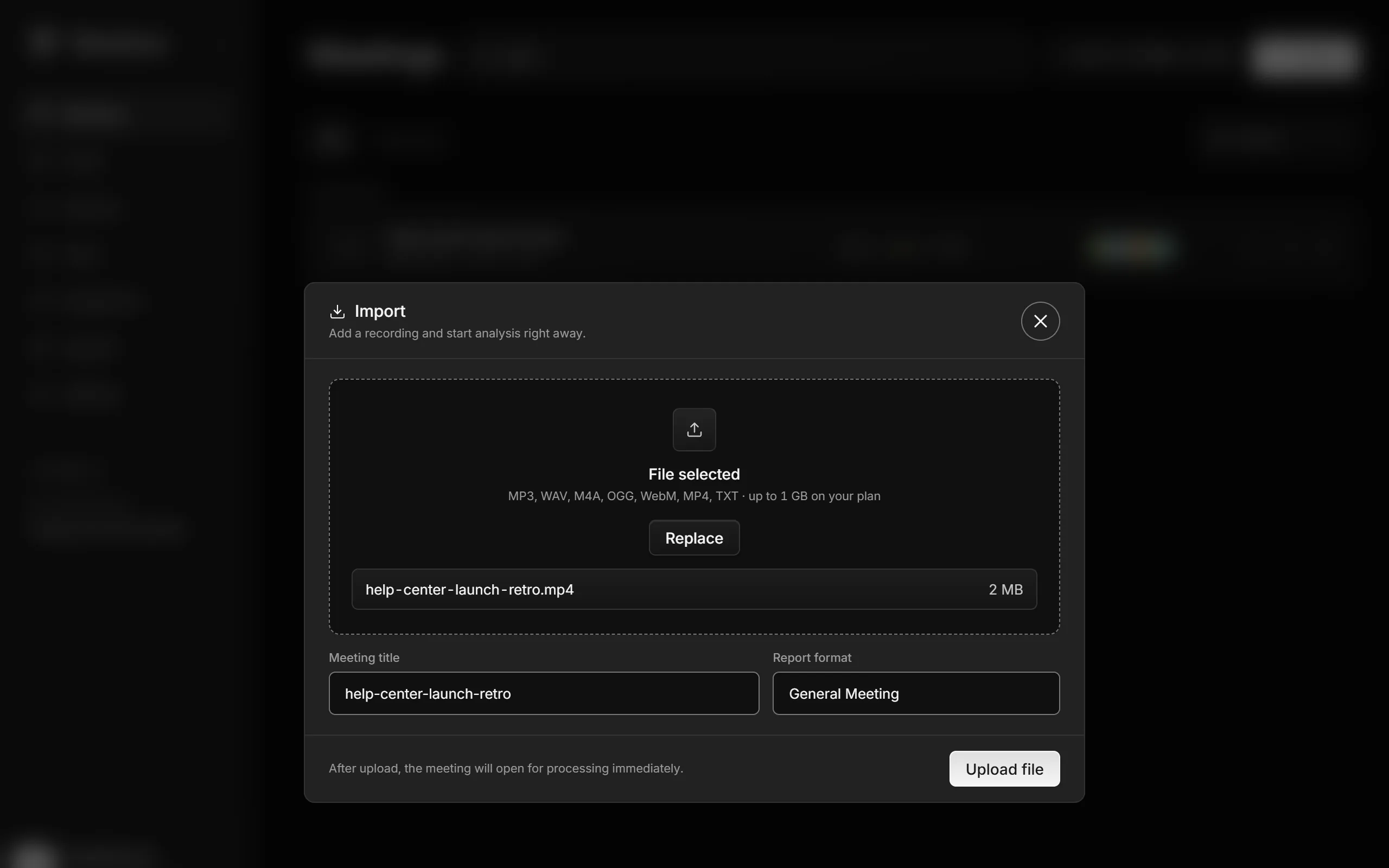
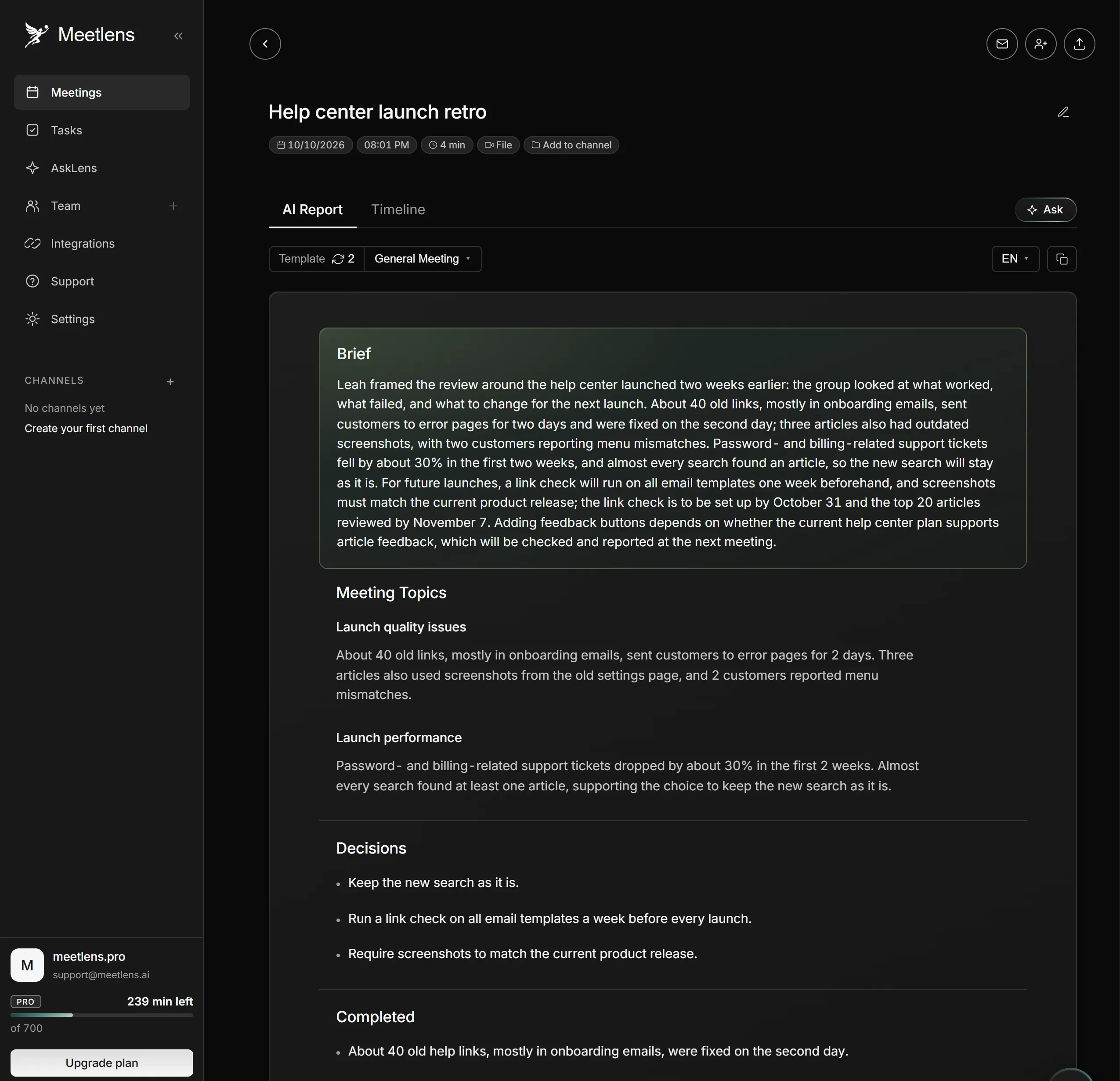
Next time, skip the download. With Zoom transcription without a meeting bot, Meetlens records the audio of a Zoom Web call in Chrome and prepares the transcript and report after you stop. It doesn't record the Zoom desktop app, and telling participants is up to you.
Find the folder. .zoom files and MP4s sit in a local recording folder that's easy to lose track of. Here is how to find zoom recordings on Windows, on a Mac and in the web portal.
Get your own copy next time. If the host doesn't share links, the remaining route is recording the meeting yourself as a participant. Wondering can you record free Zoom meetings as a guest? It starts with the host's permission.