How to Transcribe a Video: 5 Ways (Free and AI)
 Meetlens Editorial7 min readUpdated October 17, 2026
On this page
- How to transcribe a video with an AI transcription tool
- How to get a video transcript from YouTube or Google
- How to transcribe a video in Microsoft Word
- How to transcribe a video on iPhone
- How to transcribe a video by hand
- Which way to transcribe a video should you choose?
- What to do with a video transcript next
By the Meetlens editorial team. Disclosure: we build Meetlens, one of the tools compared below.
You can transcribe a video, that is, turn a video into text, in five ways, and the best result reads like any transcription example: text with speaker names and timestamps. Below is how to transcribe a video with an AI tool, with YouTube or Google, in Microsoft Word, on an iPhone and by hand, then a side-by-side comparison to pick the best way to make a transcript from a video.
How to transcribe a video with an AI transcription tool
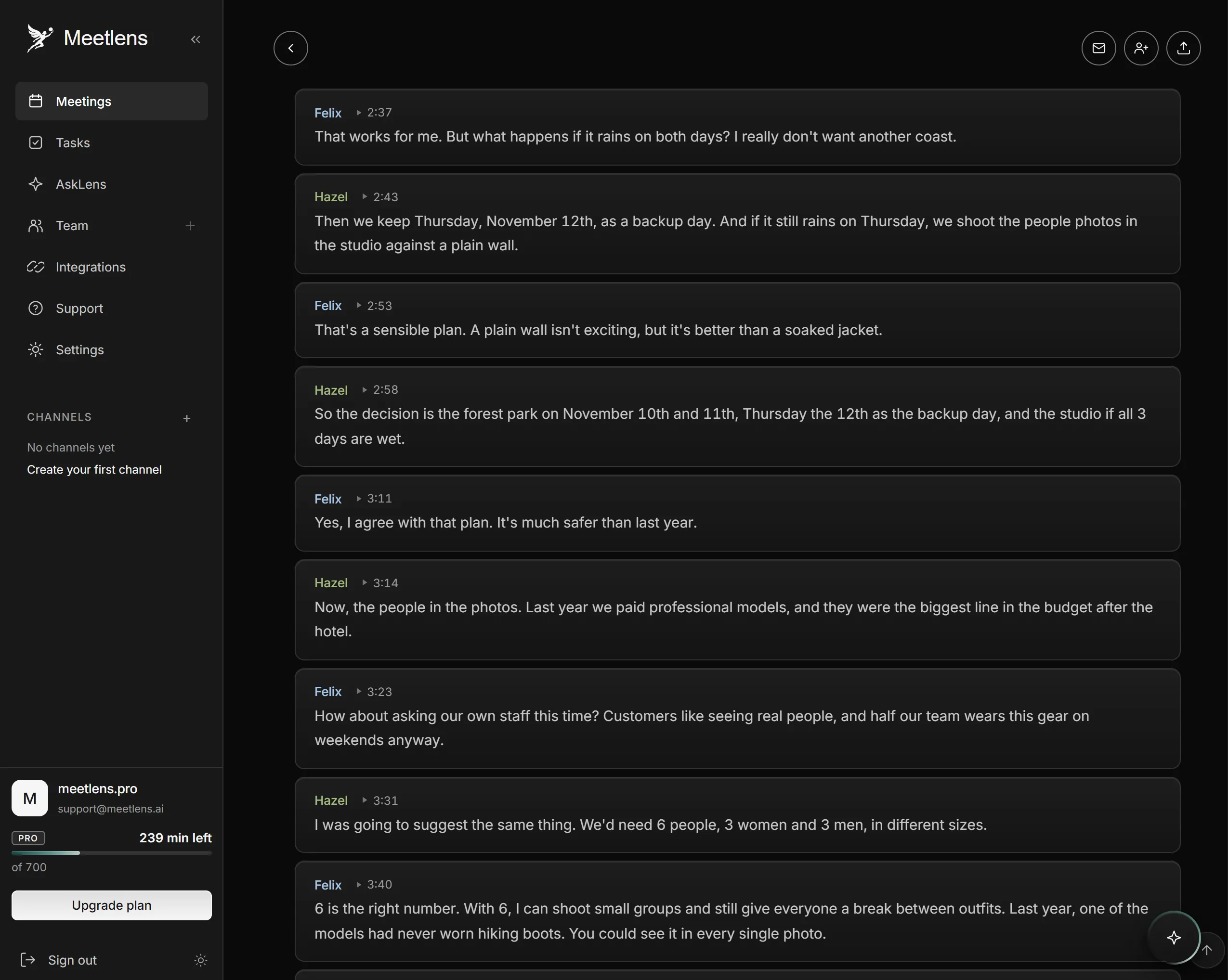
Upload the video file to an AI transcription tool, let it process the audio track, then review the text and export the video transcript: in the Meetlens team's test, a 9-minute video took about 3 minutes from upload to finished text.
AI transcription software uses speech recognition, so the steps are the same for recorded calls, interviews (see transcribing an interview) and lectures.
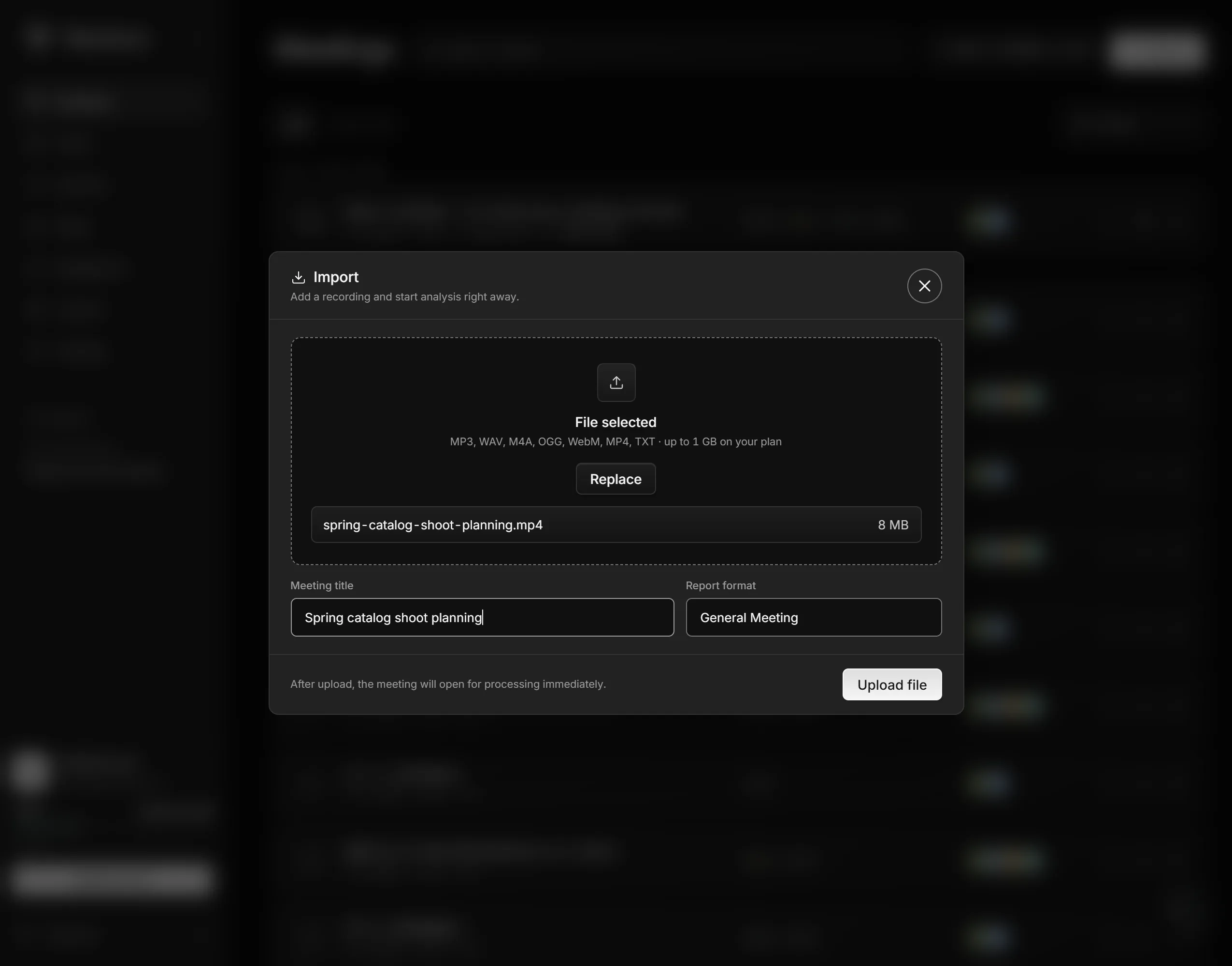
- Prepare the file. The Meetlens Import Recordings feature accepts MP4 and WebM video, MP3, M4A, WAV and OGG audio. Audio files are often smaller and easier to upload than video files. Each file can run up to an hour on the Free plan, an hour and a half on Pro and two hours on Business, within a 1 GB file size limit (3 GB on Business), so split a longer video. For privacy, upload only recordings you're entitled to process.
- Upload the file. Most tools take it by drag and drop or a file picker; Meetlens takes files, not YouTube links. To import video recordings, choose the file, type a title and pick a report format, such as General Meeting for a recorded call.
- Review the text. The video transcript comes with speaker labels and MM:SS timestamps, in 99+ languages, with the language detected automatically. Rename the speakers and fix misheard names.
- Copy or export the video transcript. The Free plan ($0, no card) lets you view and copy the text; Pro and Business export it as Markdown, TXT or PDF. Imports count toward your plan's monthly minutes.
How to get a video transcript from YouTube or Google
Google can transcribe a video for free in two ways: YouTube generates automatic captions that you can copy as a video transcript, and Google Docs voice typing types out a video you play aloud.
Using YouTube automatic captions
YouTube's automatic captions are closed captions made by speech recognition. They are less accurate with mispronunciations, accents, dialects or background noise (YouTube Help).
- Upload the video in YouTube Studio as Private, so only you and people you choose can watch it, rather than Unlisted, which anyone with the link can open (privacy settings).
- Wait. Captions may not be ready right after the upload. Villanova University's captioning guide, which also suggests Private or Unlisted, says YouTube creates them within 2 to 24 hours.
- Review the subtitles. In YouTube Studio, select Subtitles, click the video, choose Duplicate and edit, fix the lines and click Publish (editing captions).
- Copy the text. On the video page, click Show transcript in the description (viewing transcripts). In Studio, Options → Download subtitles gives a caption file with a timestamp on every line, like an SRT file.
Captions may not appear at all if the video is too long, the sound is poor or speakers overlap. The privacy page adds that YouTube's systems and human reviewers may review even private videos, so keep confidential meetings off YouTube.
Using Google Docs voice typing
Open a document in Chrome, Edge or Safari, click Tools → Voice typing, click the microphone and play the video aloud next to your computer's microphone (Google Docs Editors Help). It runs in real time, picks up room noise and adds no speaker labels or timestamps.
How to transcribe a video in Microsoft Word
Microsoft Word for the web can transcribe an uploaded .mp4, .m4a, .mp3 or .wav file and label speakers, but it needs a Microsoft 365 subscription (Microsoft Support).
- Open a document in Microsoft Edge or Chrome, the only browsers Transcribe works in.
- Go to Home → Dictate → Transcribe, then select Upload audio. Transcribe shares the Dictate drop-down with voice dictation.
- Keep the Transcribe pane open until it finishes, which can take up to about the length of the audio.
- Rename Speaker 1 and Speaker 2, then select Add all to document. Word for the web saves the document as .docx.
The upload limit is 300 minutes of audio per month on a Microsoft 365 subscription.
How to transcribe a video on iPhone
On iPhone, a free built-in way to transcribe a video is Live Captions: play the video, let the iPhone caption its audio, then copy the captions. Turn it on in Settings → Accessibility → Live Captions, play the video, tap Live Captions → iPhone Audio, then use Copy Captions from the window's menu (Apple: Live Captions). It needs iPhone 11 or later, works in real time and isn't available in every language.
Notes and Voice Memos won't do it: in iOS 27 they transcribe audio recorded in the app (Apple: Notes, Voice Memos transcription), and Voice Memos stops recording when another app plays audio (Apple: Voice Memos). For speaker labels, use a transcription tool in the web browser or move the file to a computer (Meetlens has no mobile app), and convert a .mov (QuickTime) file to MP4 first: neither Word for the web nor Meetlens lists MOV.
How to transcribe a video by hand
Transcribe a video by hand when you need exact, word-for-word text or the clip runs a few minutes: play it at 0.75× speed, type in short bursts and add a timestamp at every speaker change. It suits quotes you will publish and legal or research work. If you need every um and false start, ask for a verbatim transcript.
- Open the video next to a text editor.
- Set the playback speed to 0.75× (on YouTube: Settings → Speed).
- Use hotkeys: on YouTube, k pauses and plays, j jumps back 10 seconds, l jumps forward 10 seconds (YouTube keyboard shortcuts).
- Start a new line at every speaker change, for example "[04:12] Speaker 2:".
A paid transcription service can do the typing for you.
Which way to transcribe a video should you choose?
Use an AI tool when you need speaker names and a file you can share; use YouTube automatic captions when the video is already on YouTube and cost matters more than formatting. The table compares each way by cost, time to text, speaker labels and output. The time for Meetlens comes from the Meetlens team's test on one 9-minute video of a scripted two-speaker scene, voiced with synthetic voices; the other times come from each tool's documentation and from how each way works.
| Way | Cost | Time to text, 9-min video | Speaker labels | What you get | Limits |
|---|---|---|---|---|---|
| AI tool (Meetlens) | Free plan; paid plans export files | About 3 min in our test | Yes | Copied text; MD, TXT, PDF on paid plans | Per-file cap by plan |
| YouTube captions | Free | From 2 to 24 hours after upload | No | Copied lines, caption file | Some videos get none |
| Google Docs voice typing | Free | 9 min or more (real time) | No | A Google Doc | Real time; microphone |
| Word for the web | Microsoft 365 | Up to about 9 min | Yes | A .docx file | Monthly cap; Edge or Chrome |
| iPhone Live Captions | Free | 9 min or more (real time) | No | Copied captions | Real time |
| By hand | Free, or a paid service | Longest: you type every word | Yes | Any text file | Your time |
We checked accuracy only for Meetlens: on a 300-word passage of the test video, compared word for word with the script the voices read, it made no errors in one run and one error in a second run of the same file. Synthetic voices speak more clearly than people on a call, so expect more errors on your own recordings. A recorded Zoom, Google Meet or Microsoft Teams call needs a way that adds speaker labels (see the table), because you need to know who said what; for webinars already on YouTube, captions are enough.
You have the text. What do you do with it?
What to do with a video transcript next
A video transcript is raw material: the next step is to boil it down to decisions and tasks, or to search it for the line you need. Summarizing a video transcript into decisions, action items and owners is a job of its own. Timestamps take you back to the moment in the video, so check a quote against the audio before you publish it or repurpose a webinar into an article.