Meeting Automation: What You Can Automate Before, During and After a Meeting
 Meetlens Editorial7 min readUpdated October 17, 2026
On this page
Meeting automation means letting software handle the repetitive work around a meeting — scheduling and reminders before it, recording and transcription during it, notes and follow-up drafts after it — while people keep the decisions. The biggest payoff comes after the call, when decisions turn into tasks with owners, the part explained in what are action items. Below: the definition, the phases, post-call automation, an after-meeting workflow and what to keep manual.
What is meeting automation?
Meeting automation is the use of software to handle the repetitive work around a meeting — scheduling, recording, notes and follow-up emails — so people only do the parts that need judgment. It is business process automation applied to meetings. Zapier's guide to automating meetings defines it as "the use of technology to handle scheduling, booking, and follow-up tasks without any manual effort."
Much of the manual work sits after the call: writing up notes, turning them into tasks, drafting the email. When nobody does it, the tasks agreed on the call get lost. Using AI to take meeting notes covers the first of these.
What is the 40/20/40 rule for meetings?
The 40/20/40 rule splits the attention a meeting deserves: 40% on preparation, 20% on the meeting itself and 40% on follow-through. Graham Allcott and Hayley Watts popularized it as the "40–20–40 Continuum" in How to Fix Meetings (Icon Books, 2021); the publisher's description says "only 20 per cent of your attention for each meeting is spent in the meeting itself." The last 40% is where meeting automation pays off most, because follow-through repeats the same steps after every call.
What can you automate before, during and after a meeting?
Almost every step around a meeting can be automated except the decisions themselves: before it, scheduling and reminders; during it, recording and transcription; after it, notes, action items and follow-up drafts.
| Phase | Task | What software can do | What a human still does | Meetlens |
|---|---|---|---|---|
| Before | Scheduling | A scheduling link books a free slot with no email back-and-forth | Decides if the meeting is needed and who attends | No |
| Before | Invites and reminders | The calendar sends the invite and reminder emails | Writes the agenda | No |
| During | Recording | An AI meeting assistant records the call audio | Tells participants and starts the recording | Yes, started by you |
| During | Transcription | Speech recognition produces a speech-to-text transcript with speaker labels | Fixes misheard names and terms | Yes, after the call |
| After | Notes | AI note-taking drafts meeting notes with decisions and open questions | Checks them before sharing | Yes |
| After | Action items | The assistant pulls out tasks with owners and due dates | Confirms each owner and date | Yes |
| After | Follow-up email | The assistant drafts the email from decisions and tasks | Edits and sends it | Draft only, paid plans |
| After | Updating other apps | An automation platform copies tasks into other apps | Chooses what to move | No: copy or export |
Before the meeting, the job belongs to appointment scheduling software. Google Calendar's appointment schedules work this way: the booking page offers only the hours you mark as available and can skip times you're already busy, and the help page notes, "You can send up to 5 reminders."
During virtual meetings, a meeting assistant either joins the call as a bot, records from your browser or captures system audio through a desktop app. Speech recognition then produces the transcript, live or after the call depending on the product.
Meetlens covers the rows marked Yes, for browser video calls. It doesn't schedule meetings, send email or update other apps.
What is post-call automation?
Post-call automation is a contact center (call center) term for software that finishes after-call work — the call summary, notes, CRM update and follow-up email — once a conversation ends. For video meetings, it is the after-the-call part of meeting automation.
Google's contact center glossary defines after-call work (ACW) as "the work that an agent does after each call," also known as wrap-up time. Dialpad's post-call automation page lists the same jobs: "writing notes, selecting dispositions, updating CRM or helpdesk records." The Zealos glossary entry applies the term to sales calls, where software handles "writing the summary, updating the CRM, drafting the follow-up email and creating tasks." All three describe the same target: manual data entry, retyping the call into other systems.
For teams whose calls are video meetings, the same jobs follow every meeting. The boundary is the channel: contact center platforms and dialers automate phone calls, while Meetlens works with browser meetings in Google Meet, Zoom Web, Microsoft Teams Web and Webex. It doesn't record phone calls or update a CRM.
How to set up an after-meeting workflow
An after-meeting workflow, the fixed order of steps after a call, takes six steps: software drafts the transcript, the report and the follow-up email, and you pick the format, run the recording, review the result, send the email and move the tasks. The steps below use Meetlens, a Chrome extension that records browser meetings without a bot and turns them into automated meeting notes.
- Pick the report format before you start. In the browser extension, the format drop-down above Start recording is set to General Meeting, the default report format, with Decisions, Open Questions and a Tasks block. Client Meeting, Team Sync, One-on-One and HR Interview fit narrower calls.
- Start and stop the recording yourself. Nothing starts on its own, and no bot joins the call, so announce the recording.
- Let the transcript and report build. After you click Stop recording, Meetlens prepares the transcript and a report in the format you picked, with no further clicks.
- Review decisions, tasks and owners against the transcript. Each decision links to its moment in the recording, and a task with no owner or date is marked Unassigned.
- Edit and send the follow-up email. On Pro (15 drafts a month) and Business (50 a month), the Follow-up window drafts it with the decisions and action items. Copy it, edit it and send it yourself; Meetlens doesn't send email.
- Move the tasks into your tracker. Copy them into your task management app or export the report as Markdown, plain text or PDF on paid plans; there are no tracker integrations. Later, add the meeting to the AI chat with Add context and ask what was decided; answers link to the moments in the recording.
Meeting automation shortens steps 3 and 5. Steps 4 and 6 stay manual on purpose: that is where wrong owners and dates get caught.
After-meeting workflow: who does each step
-
Pick the report format
General Meeting is the default.
Who does it: you
-
Start and stop the recording
No bot joins the call, so announce the recording.
Who does it: you
-
Let the transcript and report build
No further clicks after Stop recording.
Who does it: software
-
Review decisions, tasks and owners
A task with no owner or date is marked Unassigned.
Who does it: you
-
Edit and send the follow-up email
Drafted on Pro and Business; Meetlens doesn’t send email.
Who does it: software drafts, you send
-
Move the tasks into your tracker
Copy them or export the report; there are no tracker integrations.
Who does it: you
What shouldn't you automate?
Don't automate anything that commits people or reaches outsiders without a human check: sending emails, assigning owners, and starting a recording without telling participants.
- Sending emails. An email goes out only after a person reads it and checks every owner and date against the transcript.
- Assigning owners. A task belongs to someone only once that person agrees to it, so the person who ran the call confirms each task and its owner.
- Recording without notice. Get consent where the law requires it: California Penal Code § 632 bars recording a confidential communication "without the consent of all parties," and other states and countries set their own rules. A recorder without a bot shows participants no notice, so ask each person to answer in a full sentence: "Yes, I agree to the recording."
- Sensitive meetings. Decide case by case whether HR, legal or medical conversations get recorded at all. That privacy decision stays with you, even though Meetlens doesn't train its AI on your recordings.
Some vendors promise AI agents that update records, create tasks and draft emails "autonomously." Apply the same rule to any intelligent agent acting on your behalf: whatever goes out in your name gets a human check first.
Can a general-purpose chatbot do this instead of a meeting assistant?
Can ChatGPT do meeting minutes?
Yes: ChatGPT can turn a transcript into meeting minutes, and on most paid plans its macOS desktop app can also record the meeting with record mode. OpenAI's ChatGPT Record help page lists Plus, Pro, Business, Enterprise and Edu workspaces and says record mode "works best in English today." Without it, ChatGPT works from what you give it: a transcript you paste or attach or, on paid plans, an uploaded audio file of up to 512 MB. Either way, it automates the writing, not the judgment: name the sections your meeting minutes need, then check names, dates and owners against the transcript. Using AI for meeting notes end to end follows the same order: record, transcribe, draft, check.
Turning action items into the follow-up email
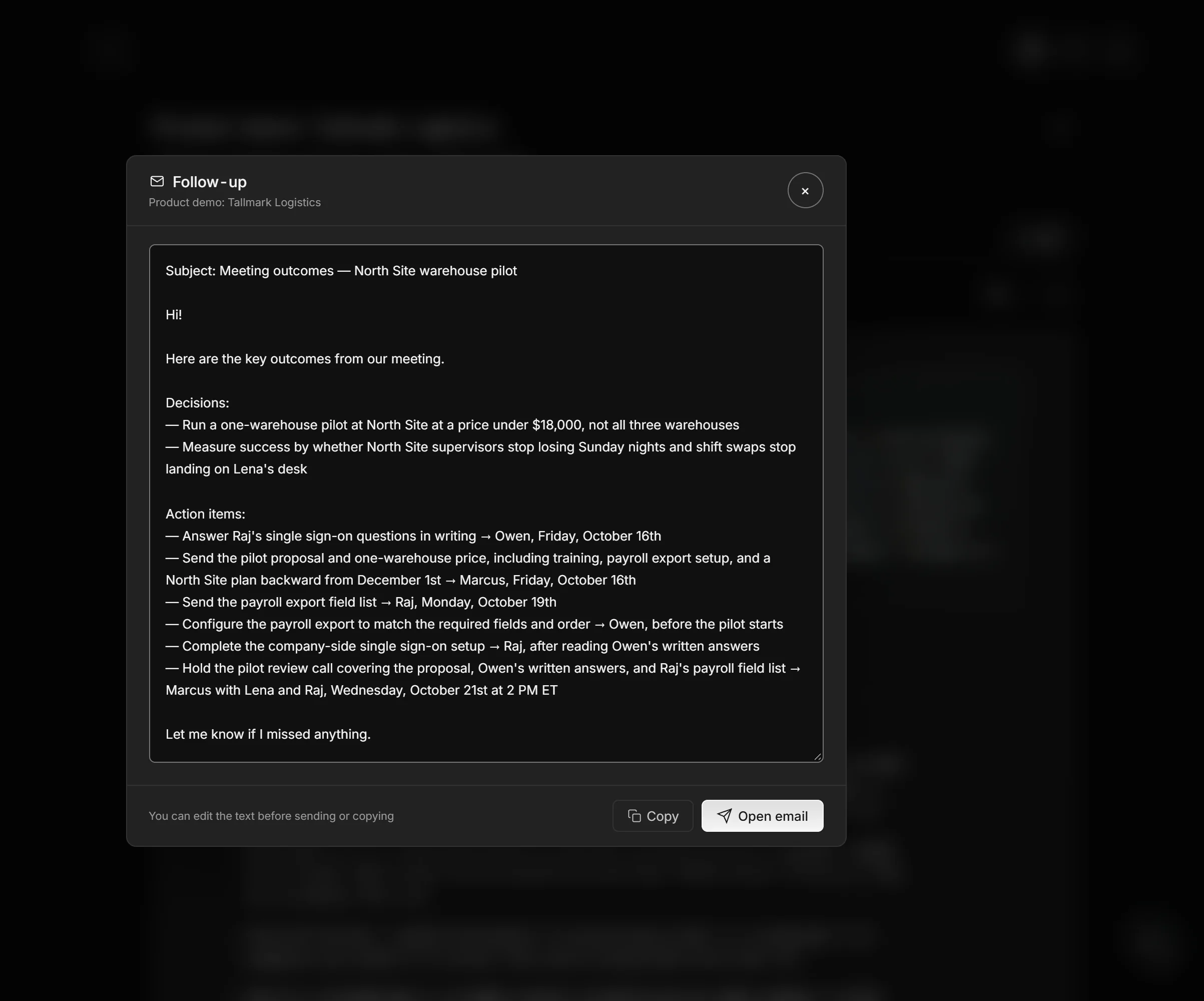
A follow-up email built from action items lists the decisions first, then each task with one owner and one due date, then a date for corrections. Meeting automation can draft that email from the report; the recipients, the tone and the client-facing wording stay with you. A client version also drops internal notes and ends with one clear ask.