How to Use AI to Take Meeting Notes: 3 Ways and a 5-Step Workflow
 Meetlens Editorial10 min readUpdated October 10, 2026
On this page
- What does AI actually do when it takes meeting notes?
- Which AI can you use to take meeting notes?
- How to use AI to take meeting notes, step by step
- How do you prompt AI to turn a transcript into meeting notes?
- What should you check before you share an AI draft of meeting notes?
- Turn the reviewed AI draft into a report for people outside the call
- Use one template for AI drafts and hand-written meeting notes
- Automate what happens after the call
By the Meetlens team. Disclosure: Meetlens is one of the tools in this article. Platform features checked against the linked help pages on October 10, 2026.
To use AI to take meeting notes, turn on your platform's built-in AI, run an AI meeting note taker, or give a transcript to a language model, then check owners, dates and decisions before sharing. AI changes how to take meeting notes: instead of typing, you check a draft. Below is how to use AI to take meeting notes: what it does, the options, five steps, a prompt and checks.
What does AI actually do when it takes meeting notes?
An AI meeting note taker records the call audio, turns it into a transcript with speaker labels, and then uses a language model to draft a summary, decisions and action items. Every option below runs these three stages; they differ in who runs each one.
- Capture: a recording of the call audio, made by the platform, by a bot that joins the call as a participant, or by software on your computer.
- Speech-to-text: speech recognition, a machine learning task, turns the audio into a transcript with timestamps and speaker labels (speaker diarization: the transcript is split by who is speaking).
- Drafting: a large language model, the generative AI step, writes AI meeting notes from the transcript.
The AI works only from the audio. It misses nonverbal signals such as a nod or a thumbs-up reaction, anything agreed without words, and the meeting chat when the tool records audio only. So AI takes over the typing part of note-taking, not the judgment: a person still decides what was agreed.
Which AI can you use to take meeting notes?
You have three options: the AI built into your meeting platform, a separate AI assistant that joins or captures the call, or a language model you give a transcript to. The second option splits in two: an assistant whose bot joins the call, and a botless one, such as a browser extension, that records on your side; see recording a meeting without a bot.
| Option | How it captures | Who turns it on | Works across platforms | Typical requirement |
|---|---|---|---|---|
| Built-in platform AI | The platform transcribes the call itself | An admin enables it; the host or a participant starts it | Usually not | A paid plan or add-on license |
| AI note taker that joins as a bot | A bot joins from a connected calendar or an invite | You; a host may have to admit it | Yes, on the platforms the vendor supports | A vendor account |
| Botless AI note taker (browser extension, e.g., Meetlens) | Records the meeting tab's audio | You, with Start recording | Yes, for calls in the browser | A desktop browser |
| Language model + transcript | You paste or upload a transcript | You | Any transcript | A model your company allows |
A meeting bot is visible to everyone on the video conferencing call: it appears in the participant list and can trigger the platform's own recording notice. Teams, for one, requires apps that record through its media API to flag the recording first (Microsoft Graph). A botless AI meeting note taker adds no participant and triggers no platform notice, so telling people is your job.
Can Copilot take meeting notes in Microsoft Teams?
Yes: Microsoft 365 Copilot in Teams takes meeting notes for users with a Copilot add-on license, and intelligent recap, Teams' AI notes after the call, comes with that license or the Teams Premium add-on. During the call, licensed users select Copilot in the meeting controls toolbar for key points and suggested action items in real time (Microsoft Support). Intelligent recap adds AI notes and follow-up tasks only if the meeting was transcribed (Recap in Microsoft Teams). If that option is missing, the cause is usually no license (Microsoft 365 Business Standard alone doesn't include it) or a tenant policy that blocks it (Microsoft Q&A).
Does Google Meet have an AI note taker?
Yes: Gemini in Google Meet takes notes with "Take notes for me," on eligible Google Workspace editions or a Google AI plan. On a work or school account, a Google Workspace admin first turns on Gemini note-taking in the Admin console (Google Workspace Admin Help). The notes arrive as a Google Docs document, emailed to the organizer and the person who started note-taking and attached to the Google Calendar event. It supports 8 languages, among them English, Spanish and Japanese, one at a time (Google Meet Help).
Does Zoom take AI notes?
Yes: the Zoom meeting summary (formerly part of AI Companion) is built into Zoom Workplace on eligible paid plans. On June 24, 2026, Zoom renamed its built-in AI features by what they do; meeting summaries are "still included with eligible paid plans" (announcement). The same post calls My Notes "a cross-platform notetaker for Zoom Meetings, Microsoft Teams, Google Meet, and in-person conversations." ZoomMate is a separate paid add-on, "available for purchase" with AI credits for agentic tasks (launch post); you don't need it for the summary.
Can ChatGPT take meeting notes?
ChatGPT can turn a transcript you give it into meeting notes; on its own, it captures meetings only through record mode in the macOS desktop app. OpenAI's help center lists record mode for Plus, Pro, Business, Enterprise and Edu workspaces. It transcribes and summarizes meeting audio, and with Google Calendar connected it can "join on schedule" for Google Meet links; Zoom, Teams and Webex calls need a manual start (OpenAI Help).
Is there a free way to use AI for meeting notes?
Yes, within monthly limits: Zoom's free Basic plan includes a few AI meeting summaries, and separate AI meeting note takers have free tiers; a transcript you already have works with any language model. Zoom's feature page lists meeting summaries for 3 hosted meetings a month and 3 My Notes uses a month on Workplace Basic. Teams and Google Meet AI notes need a paid license or plan. The Meetlens Free plan includes 180 minutes a month, recordings up to an hour each and 10 AI reports a month, with no card required.
How to use AI to take meeting notes, step by step
Tell people you're recording, start capture, pick a note format that matches the meeting, check the draft, then share it and move tasks into your tracker. This 5-step workflow works for any option above; the examples use Meetlens, the botless AI meeting note taker from the table.
Step 1: Get consent
Get consent in the first minute: as soon as recording starts (step 2), announce it out loud, wait for each person's yes, and stop if anyone objects. Mention it in the invite too, so nobody is surprised. Starting the recording first puts the answers in the recording. Asking for a full sentence gives each consent its own timestamped line in the transcript; a bare "yes" can be merged into a neighboring speaker's line:
I'm using AI to take notes on this call, so I'm recording the audio. Is everyone OK with that? If you are, please say "Yes, I agree to the recording."
Google Meet tells all participants when notes are being taken; a browser extension shows nothing, so your announcement is the only notice. Recording consent rules differ by state and country, and company policy can ban recording where the law allows it.
A bot in the participant list isn't everyone's consent either. In the Otter.ai privacy litigation (N.D. Cal.), attendees allege that the vendor's notetaker joined Zoom and Teams meetings without everyone's consent. On August 13, 2026, the court let the federal Wiretap Act and California privacy claims proceed, mainly because the vendor allegedly kept recordings to train its AI, and dismissed some other claims. It also said that a bot appearing as a participant doesn't by itself show an attendee knew he was being recorded. Nothing is proven yet.
Step 2: Start capture
Start capture as the call begins and let it run to the end: turn on the platform's AI, admit the bot, or, for a browser extension, open the call in your web browser. With Meetlens:
- Add the extension to desktop Chrome 116 or later: install Meetlens for Chrome.
- Join in a Chrome tab: Google Meet, Zoom Web, Microsoft Teams Web or Webex. The Zoom and Teams desktop apps aren't recorded, so open the call in your browser.
- Allow microphone access, or your own voice and announcement won't be recorded.
- Press Start recording. No bot joins; Meetlens records audio only, not video or the screen.
On privacy: while you record, Meetlens sends the audio to its servers over an encrypted channel; it doesn't train its AI on your meetings, and recordings are accessible only within your account.
After you stop, you get a transcript in any of 99+ languages with speaker labels, plus the report; there's no live transcript during the call. For an in-person or desktop-app meeting, upload an audio or MP4 file, or a TXT transcript. Try it on your next browser call; here's how AI note-taking in Chrome works.

Step 3: Pick the format
Pick the report format that matches the meeting, because the format decides which sections your AI meeting notes get. The format drop-down sits above Start recording. General Meeting, the default report format, has Brief, Meeting Topics, Decisions, Tasks and, when any came up, Open Questions; it fits most calls.
| Meeting | Format | Key sections |
|---|---|---|
| Weekly team sync, standup, status update | Team Sync | Participant Updates, Decisions, Blockers, Next Steps |
| Customer or sales call notes | Client Meeting | What the Client Needs, Blockers & Objections, Next Steps |
| Manager and employee 1:1 | One-on-One | Concerns, Feedback |
| Candidate interview | HR Interview | Candidate Profile, Signals |
| Board or committee meeting | General Meeting | Meeting Topics, Decisions |
General Meeting and Team Sync have a Decisions section, and Client Meeting lists decisions under Agreed. Every format except HR Interview shows tasks with owners and due dates (in Team Sync and Client Meeting, under Next Steps). No format records votes or quorum; in board meeting minutes, the secretary adds them. You can switch formats mid-recording or rebuild a finished report in another one.
Step 4: Review the draft
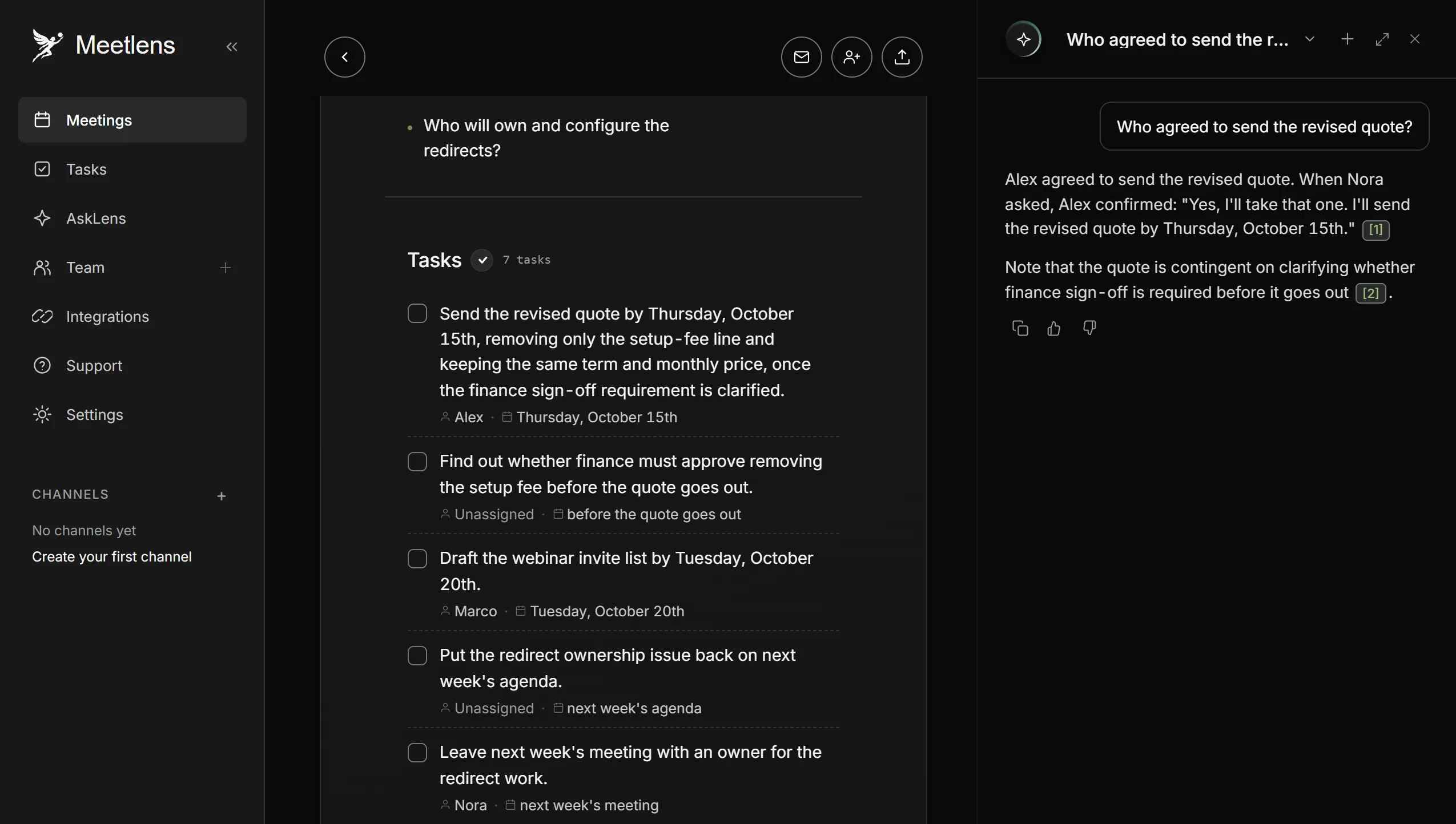
Spend 5 minutes checking the decisions, owners, dates, names and numbers your AI meeting note taker drafted against the transcript before anyone else reads them. In Meetlens, the AI timeline lists decisions, tasks and key moments by time; click one to jump to that moment in the recording. You can also ask the AI chat, "Who agreed to send the revised quote?", and the answer links to the moment.
Step 5: Share and act
Share the reviewed notes, then copy each action item into your task tracker with the same owner and due date. On paid plans, Meetlens exports the report as Markdown, TXT or PDF. Pro and Business also draft a follow-up email with the decisions and tasks, 15 drafts a month on Pro and 50 on Business; you copy the draft into your email and send it yourself.
How do you prompt AI to turn a transcript into meeting notes?
Ask for decisions, action items with owners and dates, and open questions, and tell the model to quote the transcript and write "not stated" instead of guessing. Without those rules, a language model can fill a gap with plausible text, an error called hallucination; a required quote makes each gap visible.
Transcription, turning spoken words into written text, gives you the input; paste this prompt above a transcript that keeps speaker names and timestamps:
Draft meeting notes from the transcript below.
1. Summary: 2 sentences on what the meeting was for and what it settled.
2. Decisions: only what participants explicitly agreed. Skip proposals.
3. Action items: a table with Task | Owner | Due date. Write "not stated" if the owner or date was not said.
4. Open questions: raised but not resolved.
5. Key numbers: each figure with the person who said it.
6. For every decision and action item, quote the supporting line with its timestamp.
7. Add nothing that is not in the transcript.
The same prompt engineering works in Microsoft Word: Microsoft's Word blog shows pasting a transcript into Copilot in Word and asking for a structured summary with action items (Microsoft Word blog). Summarize a very long transcript in parts first. Data privacy applies too: don't paste a confidential discussion into a tool your organization hasn't approved. The result is AI meeting notes you can check line by line.
Here is an unedited fragment of what this prompt returned for the transcript of a 10-minute team meeting, exported from Meetlens as a TXT file with speaker names and timestamps:
D3. Move the Q4 customer webinar from Thursday, November 5 to Thursday, November 12.
- [6:24] Nora: "Then let's move the webinar to November 12th. Is everyone fine with that?"
- [6:29] Alex: "Yes, I'm fine with November 12th."
- [6:33] Ben: "Yes, November 12th works for me."
- [6:36] Marco: "Yes, that works for me as well."
| # | Task | Owner | Due date |
|---|---|---|---|
| A1 | Send the logistics client the revised quote without the setup fee | Alex | Thursday, October 15 |
| A2 | Find out whether finance must sign off on dropping the fee | Not stated (the read-back says "Owner not set") | Not stated as a date. Needed before the quote goes out. |
| A3 | Draft the invite list for the webinar | Marco | Tuesday, October 20 |
| A4 | Bring the redirects back to next week's sync and leave it with an owner | Nora | Next sync, Tuesday, October 20 |
| A5 | Keep moving articles to the new Help Center; product guides are next | Ben | Not stated |
Claude Opus 5.5, run on October 11, 2026. Transcript from a staged test meeting: scripted conversation, synthetic voices.
The gaps stay visible as "Not stated" instead of guessed names and dates. At the end, the model also flagged a line it couldn't reconcile: the transcript reads "the Q4 customer webinar on September 29th," while the speaker said the webinar date had been set on September 29. Transcription had moved a sentence break, which is why each quoted line is worth checking against the recording.
What should you check before you share an AI draft of meeting notes?
Check five things before you share AI meeting notes: who owns each task, due dates, numbers, names, and whether each "decision" was actually agreed. People act on these lines, and they are the ones any AI meeting note taker may fill in when the audio is unclear. Microsoft's recap page, linked above, warns that some AI-generated content "might be inaccurate, incomplete, or inappropriate."
- Owners. Each action item names a person who said yes out loud. Watch for misattribution: a task credited to whoever suggested it, not whoever took it.
- Due dates. "By Thursday" became a date in the right week; "soon" stays "not stated."
- Numbers. Prices, percentages and figures match the transcript.
- Names. People, clients and products are spelled right, not as the transcript misheard them.
- Decisions. Each was agreed, not just proposed. Decision-making that ended in "let's think about it" is an open question.
How accurate AI notes are overall depends on audio quality and crosstalk; these five checks catch the errors that change what people do next.
What happens to AI meeting notes after the meeting?
Turn the reviewed AI draft into a report for people outside the call
Reviewed AI meeting notes are raw material for a formal report, not the report itself. Leadership or a client needs context, outcomes, risks and next steps in a fixed structure, not the running order of the call. Our guide to meeting reports covers that structure.
Use one template for AI drafts and hand-written meeting notes
A shared template keeps AI meeting notes and hand-written ones in the same order, so readers find decisions and tasks in the same place. Use the same headings in both (decisions, action items, open questions) and pick the AI report format closest to them.
Automate what happens after the call
Meeting automation can take over the steps after an AI meeting note taker finishes: sending the recap, creating tasks, scheduling the follow-up. Each automated step still needs reviewed notes as its input, so automate after the check, not before it.