How to Organize Meeting Notes and Minutes: 6 Steps to Find Anything Later
 Meetlens Editorial13 min readUpdated October 10, 2026
On this page
- What is the best way to structure meeting notes and minutes?
- Where should you keep meeting notes?
- How should you name and tag meeting notes?
- How do you keep track of action items and decisions from meetings?
- How do you find something that was said in a past meeting?
- What should you keep, and who should see it?
- Templates, AI and formal meeting minutes
To organize meeting notes, use one structure for every meeting, keep all notes in one system, name files date-first, move action items and decisions into a tracker, and make past meetings searchable. Organizing meeting notes starts where taking notes during meetings ends: note-taking pays off only if you can find the notes next month. The last step covers what to keep and who should see it.
What is the best way to structure meeting notes and minutes?
Use one structure for every set of meeting notes and minutes: details, decisions, action items, discussion by agenda item, and open questions — in that order. The same order answers how to organize meeting minutes, with a few formal additions. Outcomes go on top because people come back for them; the discussion follows the meeting agenda underneath.
Copy this layout into every meeting notes file:
YYYY-MM-DD — <meeting type> — <project or client>
Attendees:
Links: agenda · recording · previous meeting
Tags: <project> · <client> · <team> · <meeting type> · decision · has-action-items

Decisions
- <decision> (item <n>)

Action items
- <owner> — <task> — <due date> (item <n>)

Discussion by agenda item
1. <agenda item>
   - <key point>

Open questions
- <question> — <who will find the answer> (item <n>)
The discussion block is an outline: each agenda item is a heading with one to three key points under it. The "(item n)" tag ties every decision, task and question to its agenda item, so a reader finds the context without rereading the file.
Formal meeting minutes keep the same layout and add what a board or committee needs for its official record:
| Section | Meeting notes | Formal meeting minutes |
|---|---|---|
| Details | Date, meeting, attendees, links | Also present and absent members, quorum, time called to order |
| Approval | Not needed | Approval of the previous meeting minutes |
| Decisions | One line per decision | Each parliamentary motion, a formal proposal put to a vote: its exact wording, who moved it, the result |
| Action items | Owner — task — due date | Same |
| Discussion by agenda item | Key points per agenda item | One or two lines per item, no debate |
| Open questions | Each with the person who will find the answer | Deferred items, carried to the next agenda |
| Close | Date of the next meeting | Next meeting, adjournment time, secretary's signature |
Formal meeting minutes then go through their own approval: the secretary circulates a draft, and the group approves it at the next meeting. With one consistent format for both documents, clarity comes from the structure, not from whoever took notes that week.
Where should you keep meeting notes?
Keep meeting notes in one system, and pick one of three models: a running document per recurring meeting, one document per meeting in a shared folder, or a database. Each fits a different kind of meeting and breaks in a predictable way.
| Model | Best for | Breaks when | Tools |
|---|---|---|---|
| Running document: one file per recurring meeting, newest entry on top | One-on-ones, stand-ups, short recurring meetings with one small group | The file grows long, projects mix, or one entry needs tighter access than the rest | Google Docs, Microsoft Word, a Microsoft OneNote page per series |
| One document per meeting in a shared folder | Client calls, project meetings, team syncs with several topics, meeting minutes that need their own approved file | File names drift, or folders nest too deep to browse | Docs or Word files in a shared folder on Google Drive or SharePoint |
| Database: one row per meeting | Many meeting series across teams, filtered by project, client or decision | Fields stay empty, or upkeep costs more time than it saves | Google Sheets, a Notion database, Airtable |
Whatever model you pick, follow one rule: one meeting series, one home. The one-on-one lives in one running document (a one-on-one template works as its skeleton), each client's calls live in one folder, and nobody keeps a private copy "for now." That is centralized storage in practice: a shared space the team owns, not personal drives, so the record stays put when someone changes roles.
Keep the folder structure flat, two levels at most: a top folder for meetings, then one folder per series or client. Date-first file names do the sorting, so folders by year or month add clicks, not order.
A database works best as an index on top of documents: each row holds the date, the series, the tags and a link, while the meeting notes stay in their files. Over time, that index becomes a small knowledge base of what the team decided and when.
A Slack thread or a paper notebook isn't a home: chat scrolls decisions out of view, and a notebook leaves the team without the record whenever you're out.
Meeting minutes add one rule: the series folder holds the approved version, which replaces the draft once the group approves it.
How should you name and tag meeting notes?
Name every meeting notes file the same way — date first in YYYY-MM-DD format, then meeting type, then project or client — so files sort by date and search finds them. YYYY-MM-DD is the ISO 8601 calendar date format: it runs from the largest unit to the smallest, so alphabetical order matches chronological order and file systems sort dates correctly (ISO 8601 overview).
The naming convention to copy:
YYYY-MM-DD — <meeting type> — <project or client>Formal meeting minutes use a shorter pattern with a status word, YYYY-MM-DD [Body] Minutes — DRAFT, and lose "DRAFT" once the group approves them.
| Bad name | Good name | What the fix adds |
|---|---|---|
| Meeting notes (3) | 2026-10-13 — Customer success weekly sync — logistics renewal | Date, series and topic |
| Notes from Wednesday call | 2026-10-14 — Vendor call — payroll migration | A date that is still true next week |
| 10-06-2026 staff meeting | 2026-10-06 — Staff meeting — Q4 planning | Month-first names sort January 2027 ahead of October 2026 |
| Board minutes FINAL v2 | 2026-10-20 Board Minutes — DRAFT | One status word instead of version numbers |
Tags cover what the name can't. Use a fixed list of six tag types — project, client, team, meeting type, decision and has-action-items — written as plain words on the first lines of the file, so they stay searchable in any tool. For the weekly sync above, the line reads Tags: logistics-renewal · customer-success · weekly-sync · decision · has-action-items. A new tag joins the list only when the team agrees to it; otherwise "renewal," "renewals" and "contract-renewal" split one topic three ways.
Tags are part of the file's metadata, along with the date, attendees and links to the agenda, the recording and the previous meeting. Add the recording link even if the recording lives elsewhere: when a line in the meeting notes is disputed, the recording settles it.
In Google Calendar, attach the notes file to the meeting's event, so everyone opens the same file from the invite. Calendar shows attached file names to guests and to anyone with access to the event details (Google Calendar Help), so keep confidential details out of file names.
How do you keep track of action items and decisions from meetings?
Move action items and decisions out of the meeting notes into a meeting tracker, where each one has an owner, a due date, a status and a link back to the notes. That's how to keep track of meeting notes after the call: the notes keep the context, and the tracker keeps the commitments in one list you can filter. If you mark lines with D: and A: while taking notes, those are the lines you copy over, word for word.
Every row has one named owner, never "the team"; that is where accountability comes from. If your team runs work in a project management tool, the task lives there and the tracker row links to it, so status changes in one place.
Meeting tracker template (copy and paste)
The meeting tracker is a spreadsheet with eight columns and one row per decision or action item, shown here with the sample weekly sync from our note-taking guide. Copy the table, or get the Google Sheets or Microsoft Excel version below.
| Date | Meeting | Type | Description | Owner | Due | Status | Link to notes |
|---|---|---|---|---|---|---|---|
| 2026-10-13 | Customer success weekly sync | Decision | Drop the setup fee for the renewal | Nora | n/a | Active | 2026-10-13 notes, item 1 |
| 2026-10-13 | Customer success weekly sync | Action | Send revised quote | Alex | Oct 15 | Open | 2026-10-13 notes, item 1 |
| 2026-10-13 | Customer success weekly sync | Decision | Move the webinar to Nov 12 | Nora | n/a | Active | 2026-10-13 notes, item 2 |
| 2026-10-13 | Customer success weekly sync | Action | Draft the invite list | Marco | Oct 20 | Open | 2026-10-13 notes, item 2 |
Illustrative example: names and dates are invented.
Three rules for the columns:
- Owner: for an action, the person doing it; for a decision, whoever made the call, or the meeting's chair when the notes don't name one (Nora hosted the sample sync).
- Due: a date someone said aloud, never inferred from "next week."
- Status: open, in progress or done for actions; active or superseded for decisions.
An open question becomes a row only once someone owns it. In the sample notes, "Who owns the redirects?" has no owner, so it stays under Open questions and goes back on next week's agenda.
The second tab is a meeting log template: one row per meeting with the date, the meeting, the attendees and links to the notes and the recording, so you can see when a group last met and who was there.
Why a decision log matters
A decision log keeps decisions apart from tasks, so a settled question stays settled and a changed decision points to the one that replaced it. Tasks close and drop off; decisions stay in force until a later meeting changes them. Filter the tracker on Type = Decision, or give decisions their own tab:
| Date | Meeting | Decision | Owner | Status | Link to notes |
|---|---|---|---|---|---|
| 2026-09-29 | Customer success weekly sync | Hold the Q4 customer webinar on Nov 5 | Nora | Superseded by 2026-10-13 | 2026-09-29 notes, item 2 |
| 2026-10-13 | Customer success weekly sync | Move the webinar to Nov 12 | Nora | Active | 2026-10-13 notes, item 2 |
| 2026-10-13 | Customer success weekly sync | Drop the setup fee for the renewal | Nora | Active | 2026-10-13 notes, item 1 |
Illustrative example.
A month later, someone asking "when is the webinar?" finds the superseded row and follows it to the current one instead of acting on the old date. That is decision-making with a memory.
What is the 40/20/40 rule for meetings?
The 40/20/40 rule splits the effort around a meeting into 40% preparation, 20% the meeting itself and 40% follow-up. It circulates in meeting-management guides as a rule of thumb, not a measured standard. The last 40% is the tracker's job: decisions and action items matter only if someone logs them, updates their status and brings open rows to the next meeting.
How do you find something that was said in a past meeting?
Search your meeting notes first, then the transcript — and if you have many meetings, ask an AI chat that searches across all of them. Each level finds what the one before it misses:
- Your meeting notes. Search the shared folder, or press Ctrl+F (Cmd+F on a Mac) in the running document. Fast, but it finds only what someone wrote down.
- The platform's transcript. It holds what was said, word for word, if the meeting was transcribed, but search matches exact words only.
- An AI chat across your meeting archive. Ask in plain language and get an answer drawn from many meetings; it covers only recorded meetings, and answers need checking against their source.
That order is how to search past meeting transcripts without replaying recordings. Where each platform keeps them (help pages linked below, checked October 10, 2026):
| Platform | Where the transcript is saved | Where you open it | File |
|---|---|---|---|
| Microsoft Teams | Meeting organizer's OneDrive for Business | Meeting chat > Recap > Transcript, or the meeting's calendar event | .docx or .vtt download |
| Zoom | With the cloud recording, as a separate file | Web portal > Recordings & Transcripts > Cloud recordings | VTT file |
| Google Meet | Meeting organizer's Google Drive, "Google Meet" folder | Emailed link, or the meeting's calendar event | Google Docs file |
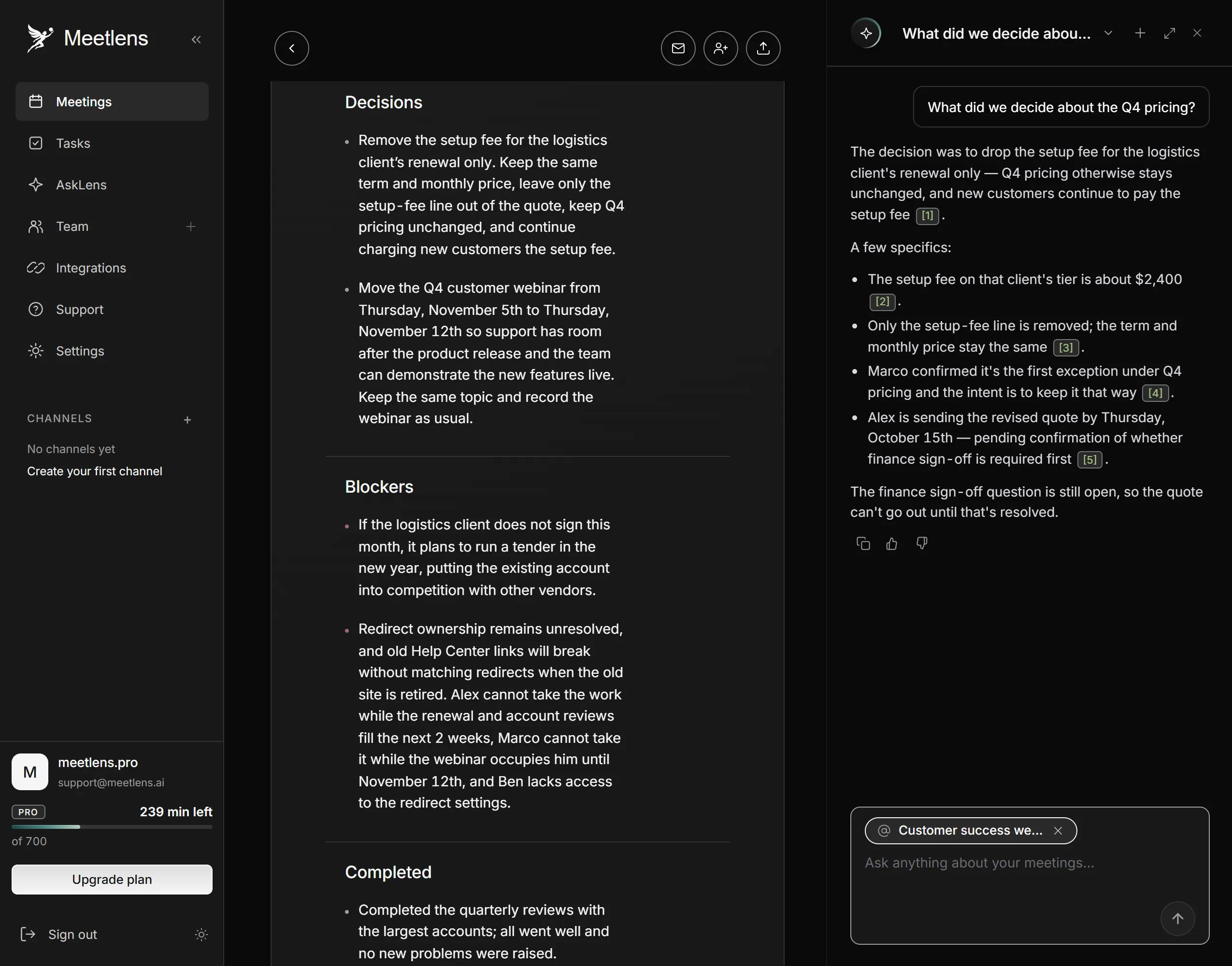
Meetlens covers the third level. It's a Chrome extension that records the audio of a browser meeting — Google Meet, Zoom Web, Microsoft Teams Web or Webex — without a bot joining the call, then produces a transcript with speaker labels, a structured AI report, a clickable timeline and a searchable archive of your meetings. The Meetlens AI meeting chat answers questions about one meeting or across all of them, so you can search across past meetings by meaning rather than exact words: "What did we decide about the Q4 pricing?" The answer comes as text, a list or a table, with links to the moments it came from when the meetings hold the evidence.
Meetlens records only audio, from desktop Chrome, not the Zoom or Teams desktop apps, so messages typed in the platform's chat aren't captured; a meeting recorded elsewhere can be uploaded as an audio or video file. No bot means no recording notice from the platform, so tell participants yourself. Treat a chat answer as a draft: open the linked moment and check names, numbers and dates before acting on them.
Where are Microsoft Teams transcripts saved?
Microsoft Teams saves meeting transcripts to the meeting organizer's OneDrive for Business and shows them in the meeting chat under Recap. To open one, select Chat, open the past meeting chat, select Recap, then Transcript (Microsoft Support); it's also in the meeting event on your calendar. By default, organizers and co-organizers can download it as a .docx or .vtt file. The Recap tab also collects the recording, shared files and notes.
How do you get a Zoom transcript after the meeting?
Zoom's audio transcript comes only with a cloud recording, and you find it in the web portal next to the recording. It needs a Pro, Business, Education or Enterprise account with cloud recording and the Create audio transcript setting on; recordings saved to your computer aren't transcribed (Zoom Support). In the web portal, open Recordings & Transcripts, then Cloud recordings, open the meeting's recording; the transcript shows beside the playback, and the "Search text in audio transcript" field searches the transcripts of your cloud recordings (Zoom Support). If your account uses Meeting Summary with AI and lets hosts keep its transcripts, they're on a separate Transcripts tab under Recordings & Transcripts (Zoom Support).
Where do Google Meet transcripts go?
Google Meet saves each transcript as a Google Docs file in the meeting organizer's Google Drive, in the "Google Meet" folder, with a sub-folder for each meeting; all instances of a recurring meeting share one sub-folder. Since Google's July 2026 change, the older "Meet Recordings" folder is called "Legacy Meet Recordings" and sits inside "Google Meet", and attendees with access to a transcript see a shortcut in their own "Google Meet" folder (Google Meet Help; Google Workspace Updates). The host, co-hosts and whoever started transcription get an email with a link, and the transcript is attached to the meeting's calendar event. Someone has to start transcription during the call, on eligible Google Workspace editions such as Business Standard; to find older transcripts, search Drive for "transcript," which is part of each file name (Google Workspace Admin Help).
What should you keep, and who should see it?
Keep meeting notes as long as the decisions in them matter, follow your company's records policy, and limit access when notes contain personal or confidential details. The retention period isn't yours to invent: records management belongs to whoever owns your company's policy, and the formal meeting minutes of a board or committee also follow state law and bylaws.
- Recordings: a recording keeps everything said, so give it a shorter retention period than the meeting notes made from it, if your policy allows.
- Disputes: if a lawsuit is pending or expected, delete nothing related to it until counsel says so. Federal Rule of Civil Procedure 37(e) covers electronically stored information that "should have been preserved in the anticipation or conduct of litigation."
- Access: share meeting notes with attendees and the stakeholders who own action items. Confidentiality needs its own space: HR, legal and client-confidential meetings go in a restricted folder, with "anyone with the link" sharing off.
- Meeting archive: when a series ends, move its home into a read-only archive of past meetings, so it stays findable and nobody edits it by accident.
What should you leave out of meeting notes and minutes?
Leave out word-for-word arguments, opinions about people, personal and medical details, and numbers nobody confirmed. Meeting notes and meeting minutes record outcomes; the Robert's Rules of Order FAQ puts it this way: "Minutes are a record of what was done at a meeting, not a record of what was said."
- Word-for-word debate: keep the outcome and, if it helps, a one-line rationale.
- Opinions about people: a missed deadline and its follow-up action belong in the notes; a remark about their character doesn't.
- Personal details: health, salary and family matters stay out of shared meeting notes.
- Unconfirmed numbers: mark them with "?" and confirm before they reach the tracker.
- Closed sessions: in formal meeting minutes, an executive session follows your organization's rules; under Robert's Rules, "Proceedings in an executive session are secret" (same page).
Can a template or AI do most of this for you?
Templates, AI and formal meeting minutes
A template and an AI note-taker take care of structure; storage, naming and the tracker remain your job.
Start from a consistent layout
A meeting notes template with the same headings for every meeting does the first step in advance. Every file arrives in one structure, so naming, tagging and copying its decisions into the tracker become routine. The layout in the first section works as that template.
Let AI capture and structure meeting notes
An AI note-taker that records the call returns meeting notes in the same structure every time: decisions, tasks with owners and due dates, open questions. You still check each line against the recording before it reaches the tracker.
Formal meeting minutes need their own template
Formal meeting minutes need fields that a meeting notes template lacks, from the quorum to the secretary's signature, so they start from a template of their own. Once approved, they go into their series folder without the DRAFT label.